Showing posts with label Switch List. Show all posts

Friday, November 10, 2017

Managed Switch Port Mapping Tool v2.78 Released November 8, 2017

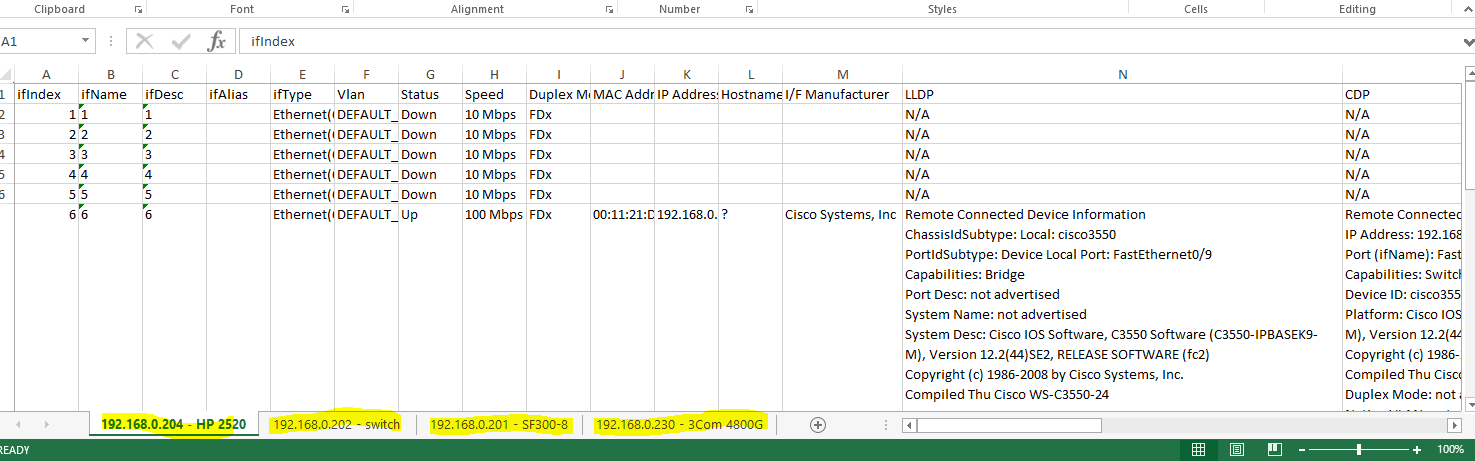
This release has one new function that has been requested by our users many times: the ability to export the results of a Switch List mapping to XML for easy opening in Microsoft Excel. Here is what it looks like when opened with Excel.


After mapping a Switch List, go to Review History, then select the Switch List and press Export Selected Switch List to XML.
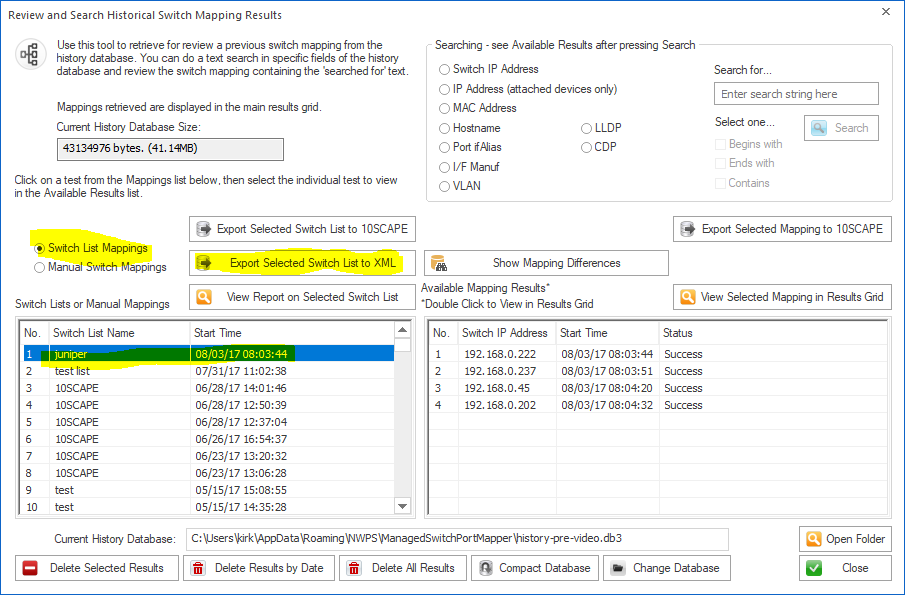

While we are looking at Review History, another thing added in this release was searching of LLDP and CDP fields. See it below.


Those are two of the more important changes in v2.78. Here are all the changes. Download v2.78 from http://www.switchportmapper.com/download.htm

-New XML export option for Switch Lists from Review History. When the XML export is opened in Microsoft Excel, each switch results appear as a separate sheet. Each row in a multi-row port (ports with more than one mac address) are shown as separate rows in the XML output. Export progress is now shown on the bottom status bar.
-Review History/Searching now has selections for searching LLDP and CDP for text strings. Searching now defaults to 'Contains' if no options are selected and the search results shown in the right hand list are a bit wider. Search results are now shown in descending order - newest at the top. 'RecNo' in the two lists have been changed to 'No.".
-Corrected reporting of Switch Operational State for Extreme Networks switches.
-Corrected and removed '00 00' showing in Interface Alias column for Force10 switches.
-Warning is now shown if 10SCAPE export does find LLDP data for the switches. Switches with no reported LLDP data are shown. Export progress is now shown on the bottom status bar.
-Added new right click menu option to clear both the results grid and the Switch Info left control panel window.
-Improved parsing of MAC and IP addresses from LLDP data.
-Added Interface Manufacturer derived from remote MAC address in LLDP.
-Moved four tables from spmap database to working database.
-Updated SQLite to version 3.21.0

-Updated MAC address/Manufacturer database.


Wednesday, April 24, 2013

SQLite Discussion - Sorting Order: TEXT vs NUMBER

One of our customers noticed a problem with our Switch List Editor in the Managed Switch Port Mapping Tool. The list ordering relies on a column in a table that we'll call ListIndex. The DDL for the table had defined the column as [ListIndex] TEXT. The index being saved in the column was the numbers zero through however many rows there are for that set of entries (this is not the main constraint column, just an indexing column within a set of rows).

If you did:

'SELECT * FROM theTable WHERE mainConstraintCol='rowSet' ORDER BY ListIndex ASC'

we expected to get a set of rows indexed 0, 1, 2, 3, 4 etc. in that order. That worked fine until there were more than 10 entries in a set of rows. Then the sorting would be 0, 1, 10, 11, 12, 13, 14, 2, 3, 4, 5, 6, 7, 8, 9. Obviously it is the creect sorting if the column is of type TEXT, but wrong since we are interested in the numbers themselves.

The solution was to change the DDL to this: [ListIndex] NUMBER (or INTEGER). That way the ORDER BY sorting ends up correctly in numeric order for lists larger than 10: 0, 1, 2, 3, 4, 5, 6, 7, 8, 9, 10, 11, 12, 13, 14, etc.

Changing the DDL works OK if you are creating the table every time, but this table is persistent between application sessions. Because SQLite (to my knowledge) has no ALTER TABLE method for changing an existing table DDL Type from TEXT to NUMBER, I had to do the create temp table, copy contents from original, DROP the original table and recreate it correctly, then copy the temp table contents back to the original. A pain, but functional method. I would be interested in any other simpler methods.

Moral of this story is to be sure of your column typing when you define a table in SQLite especially if you are depending on the contents of that column to index something else.

SQLite: www.sqlite.org
Managed Switch Port Mapping Tool: www.SwitchPortMapper.com

Wednesday, January 9, 2013

How to save XML results files from Switch Lists

This question has come up frequently from people who are using Managed Switch Port Mapping Tool v2.x in Switch List mode (this mode means two or more switches are mapped in succession).

To make individual XML files for each switch as it goes, go to the Switch List Editor and make sure 'save switch results as xml files after each switch mapping' is checked. This setting is different for each separate switch list and should be on by default.

Next, change your command line to:
spmap.exe -maplist TheSwitchListName -postexit

This tells the app to map the named list and exit when complete.

Here is the part people have a problem with: The files will be saved to either My Documents or the last used directory you saved XML files to from the menu.

You can override the path manually by mapping any switch or reloading results from history, then right click and select Export XML. Save the results to the directory you want everything to go to. When you run the switch list, it will save in that last location.

The XML filenames will have the format:
switch-ip_a.ip_b.ip_c.ip_d-unixTimestamp.xml

Please be aware that the command line option  -xml D:\switch.xml only works for a single switch.

This will be documented more fully in a subsequent release. You can get the application at http://www.SwitchPortMapper.com/