Showing posts with label Switch Port Mapper. Show all posts

Friday, November 10, 2017

Managed Switch Port Mapping Tool v2.78 Released November 8, 2017

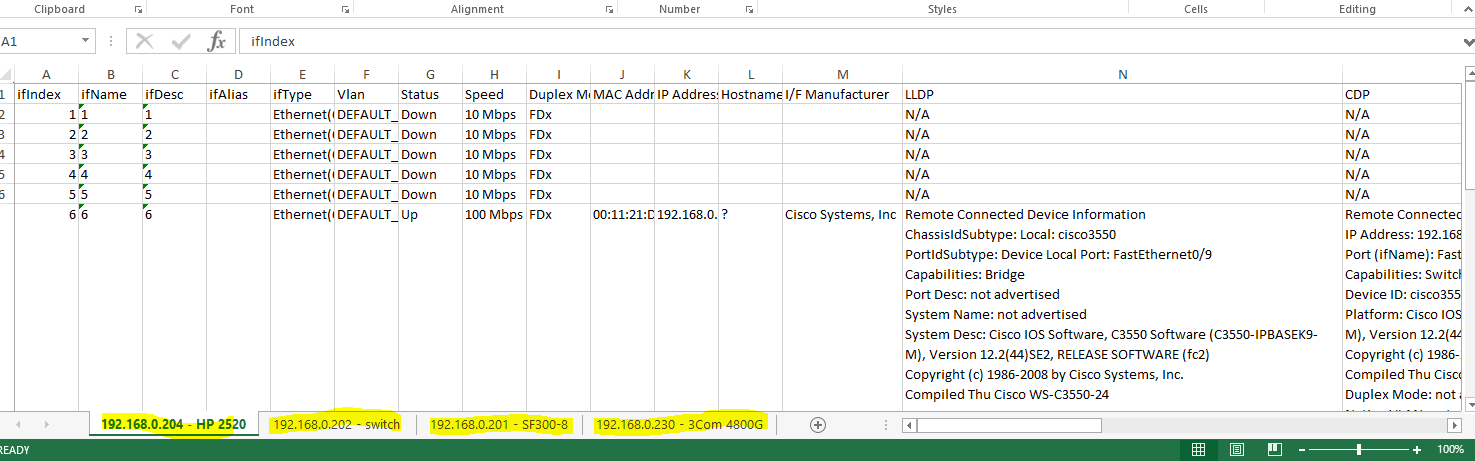
This release has one new function that has been requested by our users many times: the ability to export the results of a Switch List mapping to XML for easy opening in Microsoft Excel. Here is what it looks like when opened with Excel.


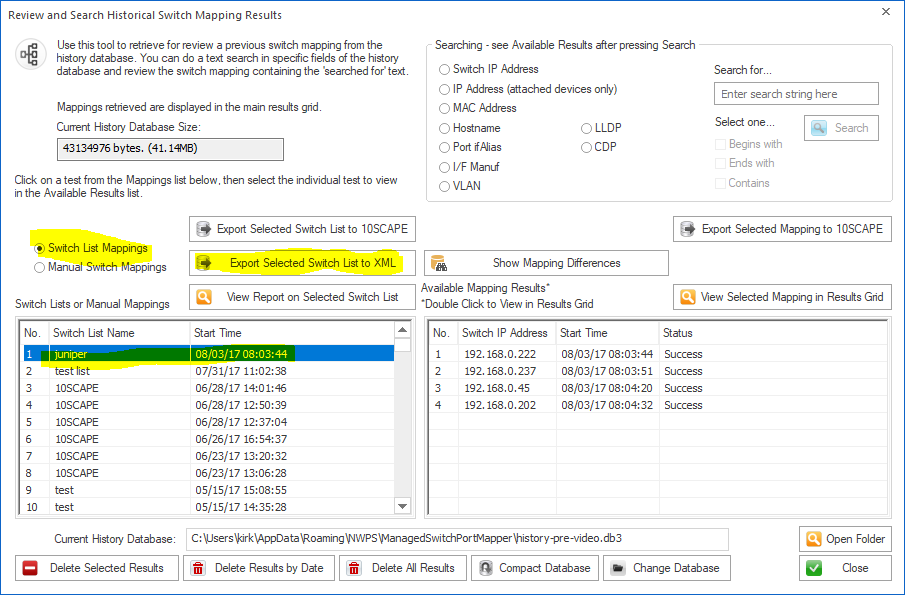
After mapping a Switch List, go to Review History, then select the Switch List and press Export Selected Switch List to XML.


While we are looking at Review History, another thing added in this release was searching of LLDP and CDP fields. See it below.


Those are two of the more important changes in v2.78. Here are all the changes. Download v2.78 from http://www.switchportmapper.com/download.htm

-New XML export option for Switch Lists from Review History. When the XML export is opened in Microsoft Excel, each switch results appear as a separate sheet. Each row in a multi-row port (ports with more than one mac address) are shown as separate rows in the XML output. Export progress is now shown on the bottom status bar.
-Review History/Searching now has selections for searching LLDP and CDP for text strings. Searching now defaults to 'Contains' if no options are selected and the search results shown in the right hand list are a bit wider. Search results are now shown in descending order - newest at the top. 'RecNo' in the two lists have been changed to 'No.".
-Corrected reporting of Switch Operational State for Extreme Networks switches.
-Corrected and removed '00 00' showing in Interface Alias column for Force10 switches.
-Warning is now shown if 10SCAPE export does find LLDP data for the switches. Switches with no reported LLDP data are shown. Export progress is now shown on the bottom status bar.
-Added new right click menu option to clear both the results grid and the Switch Info left control panel window.
-Improved parsing of MAC and IP addresses from LLDP data.
-Added Interface Manufacturer derived from remote MAC address in LLDP.
-Moved four tables from spmap database to working database.
-Updated SQLite to version 3.21.0

-Updated MAC address/Manufacturer database.


Tuesday, September 5, 2017

Managed Switch Port Mapping Tools v2.77.1 released August 30, 2017

Version 2.77.1 followed closely behind the release of 2.77. This minor release adds serial and model retrieval from Adtran switches. It also fixes some minor issues with importing devices from a text file in Switch List editor. SQLite was updated as well.

Version 2.77 was a huge release.

Managed Switch Port Mapping Tool v2.77 adds several features to enhance the user experience plus new features including one that has been requested a number of times for several years.

One of the most requested features (for years) is this: a way to compare two mappings of the same switch to see what has changed. It is now there under Review History (left control panel):


Select at mapping from the left list, then select one from the right list. Press ‘Show Added & Removed’ to see a list of what is present only in the first mapping (green) and the second mapping (blue) as shown below.


To see a list of devices moved from one port to another between mappings, press Show Moved. The final port that the device was moved to is shown in the list.


Another major addition is the ‘Test’ button. You can find it in the device settings. It give you a way to see if the device (switch or router or other) can be pinged and communicated with using the SNMP settings you have entered. See below:


Do you have Juniper, Ubiquiti and Force10 switches? We improved support for those switches and we even found that some models of Adtran switches can be mapped – but not all.

Full list of changes in this revision.

2.77 August 18, 2017

-Added button in Review History for comparing and displaying the differences between two mappings of the same switch at different times. One selection shows the difference between information present on the first switch mapping vs the second switch mapping. The other selection shows movement of a device from one port to a new port. The results of the comparisons may be saved/exported/printed.


-Added Test button to Device Settings. Use it to verify the device is reachable with Ping and verify your SNMP settings are correct. It also can tell you if it is a switch or a different kind of SNMP enabled device.

-The target switch is now tested near the start of the mapping to see if it really is a switch, if not a 'do you want to continue' question is asked.

-Additional sources of warning messages during SNMP single parameter retrievals were identified and the warning suppressed. The warnings were sometimes interpreted by users as errors and slowed the mapping process.

-New Command Line option (-txt) to save the results of a mapping to a hybrid tab/CSV delimited text file. Columns are represented by tabs and rows within a multi-row cell are represented by commas.

-Improved export to 10SCAPE. If required columns are missing, a warning is now shown at export.

-Column Order and Visibility Editor: the 10SCAPE defaults button now turns off the Ping Sweep warning (see Global Settings to reactivate it).

-Global Settings: the Display Ping Sweep Not Configured warning message is now disabled by default.

-Global Settings: when switch group specific settings (like MAC limit per port) are changed, the changes are now saved to the currently shown left panel switch group.

-Switch List Editor: show final report and show individual reports are now unchecked by default.

-Framework: menu and toolbar are now fixed in place and not dockable.

-Framework: top titlebar is now correctly updated to show the switch info when the mapping is complete.

-Juniper, Force10 and Ubiquiti switches are now processed correctly and manufacturer specific details are now retrieved.

-Some models of Adtran switches are now supported.

-Juniper switches now show the vlan name, internal vlan number and vlan tag as follows with the tag in curly braces: MYVLAN(5){100}. Other switch brands will continue to show MYLAN(5) or 5 where 5 is the vlan number.

-In order to speed up the switch list mapping process, the column widths are no longer automatically resized in list mode.

-VLAN identification for older 3COM switches was improved.

-Improvements to data shown in vlan columns.

-Fixed SQL syntax problem in lldpLocChassisId when subtypes 1-7 are present.

-Fixed usability problem with device settings editor where selections from existing community names would not appear to 'stick'.

-Fixed XML export where switch information is added in the left column.

-Added System Description to CDP data.

-New information added to SNMP Error Report.

-Changed Review History icon.

-Updated SQLite to version 3.20.0

-Updated MAC address/Manufacturer database.

Download the ‘installed’ version 2.77 from SwitchPortMapper.com and install it over the top of your current installed version.


USB version users need to use the Help Menu/Check for Update selection to obtain the upgrade patch.
Wednesday, May 13, 2015

Managed Switch Port Mapping Tool v2.52 Released on May 11, 2015

We've had some occasional problems with strange (non-printable) characters appearing in the CDP and LLDP fields - it was thought to have been fixed in a previous release but apparently not, so we addressed that in this release. Those non-printable characters occasionally included apostrophes or double quotes which completely messed up (technical term) the SQL commands, so an SQLite database error popped up. In LLDP you will now always see hex characters in the MAC Address and Network Address fields and in CDP 'Port (ifName) and Device ID will either show a printable string or hex characters - both are valid.

We also changed LLDP and CDP retrieval phases to be more responsive to user input.

Speaking of strange, non-printable characters, the new SNMP Walk Tool used for support would also occasionally show strange characters. That has been fixed too.

More minor report changes and we updated also SQLite to the latest version along with the MAC address/manufacturer database.

Please visit www.SwitchPortMapper.com to download this new release.

By the way, this version works on Windows 10 Preview 10074.

Kirk

Thursday, January 29, 2015

Managed Switch Port Mapping Tool v2.42 released on January 22, 2014

A few days after releasing 2.41 I found out that if you start the Switch Port Mapper with an empty history database (as a new user would), you would see this error message "SQLITE_ERROR[1]: duplicate column name: voiceVlan". This was due to a problem in the creation of the new Voice VLAN column introduced in 2.41. It worked fine if you already had data in the history database.

Version 2.42 corrects this - new trial users take note! We also took the opportunity to update SQLite to version 3.8.8.1 and update the MAC address to manufacturer database.

Please upgrade to v2.42 by clicking Help/Check for Update or by visiting http://www.SwitchPortMapper.com/

Kirk

Thursday, January 15, 2015

Managed Switch Port Mapping Tool v2.41 Released

Managed Switch Port Mapping Tool Version 2.41 was released on January 14, 2015.

This is an important upgrade if you use this software with Cisco Switches. There are two changes you need to be aware of: First, we improved VLAN reporting for unused ports on Cisco switches. Secondly, we added a new optional Voice VLAN column that currently supports Cisco switches only - because this column is new you will have to go into Settings and Tools/Column Order and Visibility Editor to add the column and to put the columns back to your personal preference - we had to reset the order to add the new column. Changes were made to better support Enterasys switches.

Please use Help/Check for Update or download from SwitchPortMapper.com and install over your current 2.x. The USB version patch will be ready very soon.

http://www.SwitchPortMapper.com/
 

Thursday, August 28, 2014

Switch Port Mapper Tip

Applies to all v1.x through 2.34:

If you use the menu item Settings and Tools/Column Order and Visibility Editor to add/remove columns or change where they appear, be sure to keep the Interface Index (ifIndex) column visible.

In other words, if you remove the ifIndex column some other columns may not show data you expect to see. The next release will not allow you to remove the ifIndex column.

Friday, April 4, 2014

Managed Switch Port Mapping Tool 2.32 Released

Two releases of the Switch Port Mapper were done quickly on the heels of v2.30 - the reason was to address issues with SQLITE_BUSY messages seen by some users (but never by us). It occurs during a SELECT of one table and using some of the data from that SELECT to do an INSERT into a different table - same database file. By doing a BEGIN IMMEDIATE wrapping the statements, I was able to solve the problem. It didn't used to happen so it must be a change in SQLITE operation.

I also added in a message to tell the user when Ping Sweep is activate but the IP range for Ping Sweep is empty. That's important because if you want to use Ping Sweep to prepopulate arp tables or to get NetBIOS info from a set of target, you had better define the targets. Why is this needed? simple: most people are using the Switch Port Mapper to map Layer 2 switches that don't keep track of IPs, layer 2's keep track of MAC addresses. So you have to get the IPs by retrieving ARP tables and looking for the MAC addresses so you can work backwards and get the IP addresses.

Get Managed Switch Port Mapping Tool v2.32 here:
http://www.SwitchPortMapper.com/

Tuesday, March 4, 2014

Managed Switch Port Mapping Tool v2.30 released Feb 26, 2014

Release v2.30 makes major changes to the way Ping Sweep operates. It now allows you to specify an IP range or ranges to ping on a per switch basis. This means you can set the range of IPs to match those handled by the switch. You can also now specify the timeout and retries for the ping packets. Responding IPs are queried for their MAC address and the results are placed in our Combined ARP table for use during the mapping process.

There is also a terminology change: previous versions all referred to Switch Configurations which are the combination of a switch and the two optional devices to query for ARP information. Now that term has been changed to Switch Group in order to reduce confusion with Cisco switch configs.

There are several other changes and the SQLite DLL was updated to the latest version 3.8.3.1.

Wednesday, January 22, 2014

Managed Switch Port Mapping Tool v2.23 (and v2.22) released Jan 20, 2014

These two releases are pretty important and the difference between v2.22 and v2.23 is literally one line of code thanks to an astute observation by a customer. That one line of code prevents a warning message that might appear if you were mapping a Cisco switch (like the customer's Catalyst 4506) where default VLAN 1 is not used but other VLANs are used.

The focus of v2.22 was in two areas:
1. managing the size of the history database. This database is filled with the results of every completed switch mapping. Over time it can get quite large - especially if you are using Switch List mode. So new tools were added in left panel/Review History to allow you to clean the database by date and compact it manually. The size in bytes (and MB or GB) of the history database is also now shown:

 
If you press Delete Results by Date, you can choose to remove data from the history database older than a certain time.


2. The second area was in the command line operation: we added options to do the same things as you see above from the command line.

You can download v2.23 from http://www.SwitchPortMapper.com/download.htm


Here are the complete list of changes in both versions.

2.23 January 20, 2014
-Fixed minor problem where a Warning message ("The switch did not respond with mapping from bridge ports to ifIndex...") might appear on Cisco switches. The switch was mapping correctly and the warning did not need to be shown - it only occurred if VLAN 1 was not used at all.

2.22 January 17, 2014
-Switch List Editor (important fix): corrected problem with the 'move up' control. Previously, it was copying the data from the device 2 field to both the device 2 and device 1 fields as it moved the selection up in the list. This made a switch list mapping not work correctly because the device 1 field may not be in the switch configuration list.
-Command Line: Added new option to compact all databases.
-Command Line: Added new option to delete data older than a user specified number of days from the history database.
-Review and Search Historical Switch Mapping Results: Added box showing current History Database size.
-Review and Search Historical Switch Mapping Results: Added Delete Results by Date button which gives a method of deleting old results from the History Database.
-Review and Search Historical Switch Mapping Results: Added Compact Database button.
-Review and Search Historical Switch Mapping Results: Fixed problem deleting selected results where an SQLite error would occur deleting from the dot1dBasePortIfIndex table.
-Database Maintenance: Compacting function has been extended to include history database.
-Database Maintenance: Warnings have been added if you try to erase the settings, SNMPdevices and switchConfig tables.
-Support mode event recording expanded.
-Corrected SQLite problem recording the switch list name to the support mode database after completing a switch list mapping.
-Web browser message about duplicate hostnames now suppressed using no error messages command line option.
-Improved speed of writing to history database by removing an unused index.
-SNMP Device Settings: Edit box prompts have been added.
-Updated MAC address/Manufacturer database.

Tuesday, December 24, 2013

TIP: Managed Switch Port Mapping Tool Update Check

The Managed Switch Port Mapping Tool has a method for checking for updates that simply grabs a small file from our website, then checks the running version against what the file indicates is the latest version. That works fine for interactive (manual) mode, but if you are using the software from the command line on a scheduled basis, it would be better if you turned off the version check.

How to turn the version check on or off:

  1. Start the Managed Switch Port Mapping Tool and press the Global Settings button on the left panel. See the screenshot from v2.21 below.
  2. 'Uncheck' the box labeled Enable Internet Software Version Check.


If you do turn it off, you might consider signing up for our new version notification email by clicking on Help/New Release Notification Signup or manually checking for a new version once a month by clicking on Help/Check for Update. Otherwise you may be stuck with an old version for a long, long time.

Saturday, December 21, 2013

Managed Switch Port Mapping Tool v2.21 released December 20, 2013

This is an important release - especially if you rely on the history database (history.db3) for anything. There was a problem writing multirow mac address, IP address, hostname and interface manufacturer cells (ports with several devices attached to them, like other switches) to the history database. This has been corrected along with several other minor changes. I also move to address an issue with SQLITE_BUSY message handling, so if you are on a slow computer with a slow hard drive, it should work better for you.

You can download this release from http://www.SwitchPortMapper.com/ or from NetScanTools.com. We've also recently added an FTP link for those of you with a strange problem downloading using older versions of Internet Explorer. FTP seems to work, while HTTP on old IE sometimes results in a corrupted zip file. I have no idea why that's happening because the problem shows up for those people no matter which site they download from. Strange.

This release has been fully tested on Windows 8.1, 7 and XP. Other operating systems newer than XP should work fine.

Here is the list of detailed changes:
-Corrected problem saving multirow cells (ports with 2 or more attached mac addresses) to the history database. This affects MAC Address, IP Address, Hostname and Interface Manufacturer columns.
-Changes to SQLite interface to better handle the rare occurrence of SQLITE_BUSY messages.
-Improved retrieval of serial number, model number and software versions from Netgear switches.
-Added analysis of used/unused Gigabit Ethernet (type 117) ports on a switch.
-Added new table to history database saving the dot1dBasePortIfIndex for future use.
-Added checkboxes to control the visibility of the auth and priv passwords in the SNMPv3 settings window.
-Added warning to SNMPv3 settings window regarding AuthPriv mode when the database is unprotected.
-Improved SNMPManager utility to better check versions of libeay32.dll.
-Updated SQLite to version 3.8.2
-Updated MAC address/Manufacturer database.

Friday, October 11, 2013

Managed Switch Port Mapping Tool v2.13 released Oct 10, 2013

I debated as to whether this should be 2.13 or 2.2 because normally a .2 release would mean new features. This release has new features, but in the end I settled on 2.13 because most of the changes were fixes to the LLDP and CDP columns.

The new features are showing the Switch Alias that you have created for a switch when you view the Left Panel/Select Config or Switch Lists/Edit Switch Config. This makes it much easier to see which switch you are wanting to deal with as opposed to seeing only the switch IP address.

The LLDP changes were numerous. First of all, LLDP is not indexed by ifIndex, it's indexed by any of a number of ways. Usually by the interface name, description or alias. It now works much better and will provide LLDP info in the right cell for most indexing options. The other big issue for LLDP was the IP address. Previously we were using the MAC address which is almost always sent in LLDP to lookup the IP in the database. But that didn't always work. So now if the switch has extended LLDP info, we get the IP address of the attached device from the switch LLDP data. In fact, we show them both and indicate the source of the IP address. IPv4 and IPv6 are supported from the extended LLDP info. Another problem with the previous way we reported LLDP was that if the field had no information, it was simply left blank. Now, in keeping with the way Cisco does it from CLI (show lldp neighbors), we use the statement 'not advertised'. That way you know that the data was not available to us.

The statement 'not advertised' was also extended to CDP, which by the way is indexed by ifIndex. There was also a correction to the parsing of the device capabilities field from CDP. You should not see 'unknown' very often any longer.

There was one other change to the number of rows displayed. You may see more loopback rows or similar. And as usual, the MAC Address to Manufacturer database was updated.

Please visit http://www.SwitchPortMapper.com/ to download the latest version 2.13.

Monday, July 29, 2013

Managed Switch Port Mapping Tool v2.11 and v2.10 Released in June

This post should have been made in June. The Managed Switch Port Mapper had back-to-back releases in June to add new capabilities. Together they addressed issues with obtaining MAC addresses from the local area network and a significant problem mapping Cisco switches using SNMPv3. You can download a 30 day trial at http://www.SwitchPortMapper.com/

Changes in the two releases:

2.11 June 13, 2013

-SNMPv3 changes affecting Cisco® switches: corrected problem with context field that was not being added to the SNMPv3 queries.

-Documented changes to Cisco switch running-config that are required to use SNMPv3 and get meaningful results.

2.10 June 12, 2013

-Ping Sweep: significant internal changes to address ARP table issue reported in v2.09. These changes vastly improve collection of ARP information for all supported operating systems.

-Minor wording changes to Web Browser Summary Report. Added details about results of Ping Sweep action.

-Review History: it now remembers the last mode (Switch Lists or Manual Mappings) between successive uses of Review History within a session. If you were looking at a Switch Mapping, then come back to look at another, you do not have to reselect the mode again unless you are changing to a different mode.

-Review History: added switch alias column to Manual Switch Mappings view in the 'Switch Lists or Manual Mappings' list.

-Updated SQLite to version 3.7.17

-Updated MAC address/Manufacturer database.

Friday, July 5, 2013

New Training Videos for the Managed Switch Port Mapping Tool

A number of videos have been recently completed explaining in detail procedures and techniques for properly and effectively using the Managed Switch Port Mapping Tool.
Videos:
  • How to use the USB Switch Port Mapping Tool (basic operating methods also apply to the installed version)
  • Obtaining IP Addresses of Attached Devices using the Managed Switch Port Mapping Tool
  • Exporting Results to a Spreadsheet from the Managed Switch Port Mapping Tool
  • Switch Lists in the Managed Switch Port Mapping Tool
  • Command Line Operation in the Managed Switch Port Mapping Tool
  • Understanding Results from the Managed Switch Port Mapping Tool 
 
There is a playlist for this set called “Training: Managed Switch Port Mapping Tool” and it can be found here: 
 
All of our videos are here on our YouTube Channel for both NetScanTools Pro and the Managed Switch Port Mapping Tool:


Configuring Cisco® IOS Switches for use with SNMPv3 and the Managed Switch Port Mapping Tool

Cisco switches are not typically configured for default reading of all the Bridge-MIB information on a per-VLAN basis when using SNMPv3. You can usually see VLAN-1 data without changes, but to see other VLANs, you have to make some changes to running-config.

Cisco uses SNMPv3 'context' to allow retrieval of per-VLAN data from Bridge-MIB (things like device MAC addresses). This is not pre- configured so each switch must have the running-config in the switch changed to report the VLAN details. If the switch is not configured, this software and any other switch mapping software cannot map the switch with SNMPv3. We can map it using SNMPv1 or v2c if allowed without any special config changes.

First, you need to see if your switch supports contexts. From CLI do:

show snmp context

Assuming success – your switch IOS version supports context, check to see if your switch supports prefix matching. In your running config add:

snmp-server group yourV3groupName v3 auth context vlan- match prefix

(don't forget the dash character after vlan)

If it does support prefix matching every Cisco switch using IOS and SNMPv3 that you intend to map must have that command in the config - you can skip the next section - you are done after saving your config.

If it does NOT support prefix matching you have a lot of work to do. Every VLAN must have a context set up for it.

You have to add this command into running config for EVERY VLAN:

snmp-server group yourV3groupName v3 priv context vlan-(vlanid)

So if you have 10 VLANs on the switch, that command must appear 10 times, once for each VLAN (no parens around 'vlanid' and you may want to add 'access #' at the end).

Examples of lines to add to running-config:
snmp-server group yourV3groupName v3 priv context vlan-1
snmp-server group yourV3groupName v3 priv context vlan-6
snmp-server group yourV3groupName v3 priv context vlan-50
snmp-server group yourV3groupName v3 priv context vlan-100

Wednesday, April 24, 2013

SQLite Discussion - Sorting Order: TEXT vs NUMBER

One of our customers noticed a problem with our Switch List Editor in the Managed Switch Port Mapping Tool. The list ordering relies on a column in a table that we'll call ListIndex. The DDL for the table had defined the column as [ListIndex] TEXT. The index being saved in the column was the numbers zero through however many rows there are for that set of entries (this is not the main constraint column, just an indexing column within a set of rows).

If you did:

'SELECT * FROM theTable WHERE mainConstraintCol='rowSet' ORDER BY ListIndex ASC'

we expected to get a set of rows indexed 0, 1, 2, 3, 4 etc. in that order. That worked fine until there were more than 10 entries in a set of rows. Then the sorting would be 0, 1, 10, 11, 12, 13, 14, 2, 3, 4, 5, 6, 7, 8, 9. Obviously it is the creect sorting if the column is of type TEXT, but wrong since we are interested in the numbers themselves.

The solution was to change the DDL to this: [ListIndex] NUMBER (or INTEGER). That way the ORDER BY sorting ends up correctly in numeric order for lists larger than 10: 0, 1, 2, 3, 4, 5, 6, 7, 8, 9, 10, 11, 12, 13, 14, etc.

Changing the DDL works OK if you are creating the table every time, but this table is persistent between application sessions. Because SQLite (to my knowledge) has no ALTER TABLE method for changing an existing table DDL Type from TEXT to NUMBER, I had to do the create temp table, copy contents from original, DROP the original table and recreate it correctly, then copy the temp table contents back to the original. A pain, but functional method. I would be interested in any other simpler methods.

Moral of this story is to be sure of your column typing when you define a table in SQLite especially if you are depending on the contents of that column to index something else.

SQLite: www.sqlite.org
Managed Switch Port Mapping Tool: www.SwitchPortMapper.com

Switch Port Mapper 2.07 Released

The latest version 2.07 of the Managed Switch Port Mapping Tool was released on April 22, 2013. The purpose of this release was to correct a problem with Switch Lists, more specifically the Switch List editor and the execution engine. The issue only was apparent when you had more than 9 switches in a list. If you had 10 or more, the sort order of the switches in the editor and the execution engine was like this: 0, 1, 10, 11, 12, 2, 3, 4, 5 etc. instead of 0, 1, 2, 3, 4, 5 etc.

As a result of working with the Switch List Editor, I discovered it was saving to the database fairly inefficiently (slowly), so I made some changes to speed that up and so it is much faster now when you press the OK button to close the editor.

It was suggested by a user that we include a method for copying a whole results grid row to the clipboard and that was added, however, it may not appear quite as you expect because if there are more than one MAC address in a cell, a CR-LF is added to the copied text for each one.

As usual, we keep updating SQLite DLL to match the latest version and the MAC Address to Manufacturer database was also updated.

Get it at www.SwitchPortMapper.com or follow the instructions in Help/Check for Update.

Thursday, April 11, 2013

USB Version of the Managed Switch Port Mapper

We have offered NetScanTools Pro as a fully portable application running from a USB Flash Drive since 2006 and now the Managed Switch Port Mapping Tool has joined it.

The Switch Port Mapper can now run from a USB Flash Drive using a special compiled version. It retains all the same features as the 'installed' version yet now is fully portable so that you can run it on any Windows XP or later machine that offers a USB 2.0 or 3.0 port. Simply plug in the flash drive, navigate to the executable and start it. And it doesn't require 'Run as administrator'!

We are shipping it on a fast USB 3.0 (compatible with USB 2.0) 16 GB flash drive and for those who already have their own fast flash drive, we can supply a fileset that you can put on it yourself with assistance from our tech support.

The advantages of having the Switch Port Mapper on a USB Flash Drive - not requiring installation - are immense. Network Techs can take it to offsite locations and quickly map a switch.

As far as we know, we are the ONLY company offering Switch Port Mapping software both as fully portable USB flash drive software and as installed on a Windows computer.

Interested?

www.SwitchPortMapper.com

Tuesday, March 5, 2013

Managed Switch Port Mapping Tool v2.06 Released

Yesterday, March 4, we released the latest version of the Managed Switch Port Mapping Tool, v2.06. It is a very minor release that adds support for full conversion of earlier database table formats to the latest version all the way back to v1.00. It also has a command line preset button for using ExtraPuTTY in Global Settings. The mac address to manufacturer database has been updated.

Please visit http://www.SwitchPortMapper.com/

Wednesday, January 9, 2013

How to save XML results files from Switch Lists

This question has come up frequently from people who are using Managed Switch Port Mapping Tool v2.x in Switch List mode (this mode means two or more switches are mapped in succession).

To make individual XML files for each switch as it goes, go to the Switch List Editor and make sure 'save switch results as xml files after each switch mapping' is checked. This setting is different for each separate switch list and should be on by default.

Next, change your command line to:
spmap.exe -maplist TheSwitchListName -postexit

This tells the app to map the named list and exit when complete.

Here is the part people have a problem with: The files will be saved to either My Documents or the last used directory you saved XML files to from the menu.

You can override the path manually by mapping any switch or reloading results from history, then right click and select Export XML. Save the results to the directory you want everything to go to. When you run the switch list, it will save in that last location.

The XML filenames will have the format:
switch-ip_a.ip_b.ip_c.ip_d-unixTimestamp.xml

Please be aware that the command line option  -xml D:\switch.xml only works for a single switch.

This will be documented more fully in a subsequent release. You can get the application at http://www.SwitchPortMapper.com/