Our August Newsletter is ready. It talks about the recent releases and we mention the upcoming Managed Switch Port Mapping Tool 2.54 and NetScanTools Pro 11.72. Those will be done very soon.
Please visit:
http://www.netscantools.com/pressandnewsletters.html
Have a great end of summer!
Thursday, August 27, 2015


Thursday, August 13, 2015
How I installed Windows 10 on an old Dell Inspiron 1520 laptop
Windows 10 Pro retail release on a 9 year old laptop? yes. It can be done. But it wasn't easy.
Where I started from:
The Inspiron 1520 has 4GB ram, a 2Ghz Core2 Duo, a SanDisk Ultra II SSD and it had 32 bit Windows 7 which was an upgrade from the original Vista 32. I cloned the SSD to another hard drive before getting started. I used a Windows 10 32 bit ISO burned to a DVD. For tries 1 and 2, I used WiFi to access the internet.
1st try - everything seemed to go well, I let it download updates to the install. But then it got to the first reboot. It hung on the light blue window logo with the spinning dots. After half an hour I manually rebooted it and it gave this message "0xC1900101 - 0x20017 The installation failed in the SAFE_OS phase with an error during BOOT operation". Windows 7 was back, so I tried again.
2nd try - similar to the first (I allowed updates). The reboot phase was different this time - no logo with spinning dots. There was a cursor. Window 7 did come back to life.
So I did some fruitless research and found that the error message might be related to a driver. So I did things differently on the third and final try.
3rd try - this time I flipped the switch that turned off WiFi, plugged in an Ethernet cable (for Windows activation) and Bluetooth and I told the installer not update before installing. It worked. After the first reboot I got the large circle showing upgrade progress. Then finally I got to "Hi there, welcome back!" and finished the upgrade. But I wasn't done - read on.
Windows 10 was showing the desktop in 1024x768 mode instead of the native 1440x900. Display settings would not allow me to go that high, so I unplugged the Ethernet cable and switched on WiFi. Then I downloaded the updates. After rebooting the NVidia driver was active and gave me the option to go to 1440x900.
Next, I started going through apps to check compatibility. NetScanTools Pro, the Managed Switch Port Mapping Tool and related products worked normally as did iTunes and Office 2007. But SanDisk SSD Dashboard 1.4.1 hung on startup and consumed 98% of CPU time no matter what I did. Obviously SanDisk has some work to do.
Later I went into the Startup tab of Task Manager to disable old unused drivers - that speeded up boot time and stopped a crash message on power down.
It wasn't easy, but I now have Windows 10 Pro 32 bit running. I would really like to get x64 running on it instead. Another time.
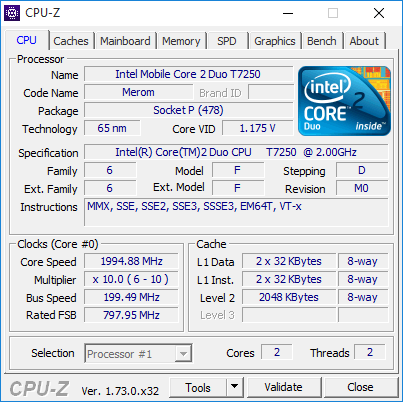
Here are screenshots of the System window and below it is the CPU-Z.


Where I started from:
The Inspiron 1520 has 4GB ram, a 2Ghz Core2 Duo, a SanDisk Ultra II SSD and it had 32 bit Windows 7 which was an upgrade from the original Vista 32. I cloned the SSD to another hard drive before getting started. I used a Windows 10 32 bit ISO burned to a DVD. For tries 1 and 2, I used WiFi to access the internet.
1st try - everything seemed to go well, I let it download updates to the install. But then it got to the first reboot. It hung on the light blue window logo with the spinning dots. After half an hour I manually rebooted it and it gave this message "0xC1900101 - 0x20017 The installation failed in the SAFE_OS phase with an error during BOOT operation". Windows 7 was back, so I tried again.
2nd try - similar to the first (I allowed updates). The reboot phase was different this time - no logo with spinning dots. There was a cursor. Window 7 did come back to life.
So I did some fruitless research and found that the error message might be related to a driver. So I did things differently on the third and final try.
3rd try - this time I flipped the switch that turned off WiFi, plugged in an Ethernet cable (for Windows activation) and Bluetooth and I told the installer not update before installing. It worked. After the first reboot I got the large circle showing upgrade progress. Then finally I got to "Hi there, welcome back!" and finished the upgrade. But I wasn't done - read on.
Windows 10 was showing the desktop in 1024x768 mode instead of the native 1440x900. Display settings would not allow me to go that high, so I unplugged the Ethernet cable and switched on WiFi. Then I downloaded the updates. After rebooting the NVidia driver was active and gave me the option to go to 1440x900.
Next, I started going through apps to check compatibility. NetScanTools Pro, the Managed Switch Port Mapping Tool and related products worked normally as did iTunes and Office 2007. But SanDisk SSD Dashboard 1.4.1 hung on startup and consumed 98% of CPU time no matter what I did. Obviously SanDisk has some work to do.
Later I went into the Startup tab of Task Manager to disable old unused drivers - that speeded up boot time and stopped a crash message on power down.
It wasn't easy, but I now have Windows 10 Pro 32 bit running. I would really like to get x64 running on it instead. Another time.
Here are screenshots of the System window and below it is the CPU-Z.


Friday, July 31, 2015
July Newsletter Ready
This newsletter covers the recent NetScanTools Basic 2.4 and Managed Switch Port Mapping Tool 2.53 releases along with Windows 10 compatibility. Have a good summer!
Wednesday, June 24, 2015
How to use Remote Desktop to access Windows Server 2012 from Windows 7 with TLS 1.0 Disabled
After securing a Windows Server 2012 box with TLS 1.0 disabled per PCI-DSS 3.1 requirements, I found that I could only connect to it through Remote Desktop (RDP) from a Windows 8.1 or Windows 10 client.
The problem was this: all attempts to connect through the LAN via Remote Desktop from Windows 7 were met with "This computer can't connect to the remote computer. Try connecting again...etc."
The Server 2012 Standard (not R2) computer is running the most simple Remote Desktop mode accessed through Computer/Remote Settings as shown below.

I went through rabbit trails with firewall settings, Remote Desktop Services (which I did not install) turning on and off the 'Allow connections only from computers running Remote Desktop with Network Level Authentication', using Select Users - none of them worked.
During extensive searching I ran across a some discussions of TLS and RDP on Windows 7. I found that we had RDP 7.1 on the Windows 7 sp1 computer and RDP 8.0 was an optional download through Windows update. RDP 8 apparently has support for later TLS versions beyond the disabled TLS 1.0. RDP 8 for Windows 7 is discussed here: https://support.microsoft.com/en-us/kb/2592687.
Solution: After installing the KB2592687 update (an optional update in Windows update), rebooting and installing even more updates triggered by that update, RDP 8.0 client was installed and connected normally to the Windows 2012 server.
There is also an RDP 8.1 client only update KB2830477 that I may install later but for now I can Remote Desktop in to the Server 2012 box from Windows 7 without any apparent problems.
More info on RDP 8.1 for Windows 7 including prerequisites: http://blogs.msdn.com/b/rds/archive/2013/11/12/remote-desktop-protocol-8-1-update-for-windows-7-sp1-released-to-web.aspx
The problem was this: all attempts to connect through the LAN via Remote Desktop from Windows 7 were met with "This computer can't connect to the remote computer. Try connecting again...etc."
The Server 2012 Standard (not R2) computer is running the most simple Remote Desktop mode accessed through Computer/Remote Settings as shown below.

I went through rabbit trails with firewall settings, Remote Desktop Services (which I did not install) turning on and off the 'Allow connections only from computers running Remote Desktop with Network Level Authentication', using Select Users - none of them worked.
During extensive searching I ran across a some discussions of TLS and RDP on Windows 7. I found that we had RDP 7.1 on the Windows 7 sp1 computer and RDP 8.0 was an optional download through Windows update. RDP 8 apparently has support for later TLS versions beyond the disabled TLS 1.0. RDP 8 for Windows 7 is discussed here: https://support.microsoft.com/en-us/kb/2592687.
Solution: After installing the KB2592687 update (an optional update in Windows update), rebooting and installing even more updates triggered by that update, RDP 8.0 client was installed and connected normally to the Windows 2012 server.
There is also an RDP 8.1 client only update KB2830477 that I may install later but for now I can Remote Desktop in to the Server 2012 box from Windows 7 without any apparent problems.
More info on RDP 8.1 for Windows 7 including prerequisites: http://blogs.msdn.com/b/rds/archive/2013/11/12/remote-desktop-protocol-8-1-update-for-windows-7-sp1-released-to-web.aspx
Monday, June 15, 2015
NetScanTools Pro v11.70 released on Friday, June 12, 2015
Version 11.70 was long overdue but we made many changes and added a new tool called the DNS Traffic Monitor. This new tool shows you the percentage of query allocations or loading experienced by each default DNS assigned to your system. It also shows you any outgoing DNS queries to DNS that are not in your default list.

This release completes the transition of moving all the code to VC2012. The next move will be to VC2015 when it is finally released. All development has now been transitioned to Windows 8.1. It may be one of the last releases to support Windows XP.
Additionally, each separately launched tool has been changed to conform to a new look and feel. The DNS Traffic Monitor is one example of the look - here are a couple others:
The demo version will be updated to 11.70 soon. If you have an active maintenance plan you can get 11.70 by clicking on Help/Check for New Version.

This release completes the transition of moving all the code to VC2012. The next move will be to VC2015 when it is finally released. All development has now been transitioned to Windows 8.1. It may be one of the last releases to support Windows XP.
Additionally, each separately launched tool has been changed to conform to a new look and feel. The DNS Traffic Monitor is one example of the look - here are a couple others:
 |
| Passive Discovery |
 |
| SNMP Scanner |
Wednesday, June 10, 2015
Win10Pcap - a WinPcap fork
Today Gerald Combs graciously forwarded me an announcement about a new fork to WinPcap called Win10Pcap based on NDIS 6. I immediately tested it with Wireshark and NetScanTools Pro.
Since this fork uses a different kernel mode driver name - ie, NOT npf.sys, Wireshark shows the popup message "The NPF driver isn't running. You may have trouble capturing or listing interfaces.". However, even though this message shows Wireshark will run because Wireshark loads packet.dll and wpcap.dll - these two DLL interfaces are unchanged (the WinPcap SDK interface is supposedly unchanged) so no matter what the driver is called, it starts. So, yes, Wireshark 1.12.5 appears to run with this fork of WinPcap.
That brings me to NetScanTools Pro. Not only does NetScanTools Pro capture packets (like Wireshark), it also sends packets. I tested the ARP, Ping and Traceroute tools that depend on WinPcap for sending packets. They appeared to work OK.
I was just about to release NetScanTools Pro 11.70, so I was able to make my test for active running npf.sys also test for the new service name - so that means NetScanTools Pro will be able to detect either the official WinPcap 4.1.3 and successors or this new fork.
Note that old WinPcap 4.1.3 DOES WORK FINE on later releases of Windows 10 builds based on NDIS 5. So it's your choice as to whether you need to use this new fork.
You may download this new WinPcap fork from http://www.Win10Pcap.org/ however, since they use GPLv2 instead of BSD license as WinPcap has historically done, we will not be including the installer with NetScanTools Pro.
Congrats to the author of Win10Pcap! (but what happens to the name when Win 11 is released?)
Since this fork uses a different kernel mode driver name - ie, NOT npf.sys, Wireshark shows the popup message "The NPF driver isn't running. You may have trouble capturing or listing interfaces.". However, even though this message shows Wireshark will run because Wireshark loads packet.dll and wpcap.dll - these two DLL interfaces are unchanged (the WinPcap SDK interface is supposedly unchanged) so no matter what the driver is called, it starts. So, yes, Wireshark 1.12.5 appears to run with this fork of WinPcap.
That brings me to NetScanTools Pro. Not only does NetScanTools Pro capture packets (like Wireshark), it also sends packets. I tested the ARP, Ping and Traceroute tools that depend on WinPcap for sending packets. They appeared to work OK.
I was just about to release NetScanTools Pro 11.70, so I was able to make my test for active running npf.sys also test for the new service name - so that means NetScanTools Pro will be able to detect either the official WinPcap 4.1.3 and successors or this new fork.
Note that old WinPcap 4.1.3 DOES WORK FINE on later releases of Windows 10 builds based on NDIS 5. So it's your choice as to whether you need to use this new fork.
You may download this new WinPcap fork from http://www.Win10Pcap.org/ however, since they use GPLv2 instead of BSD license as WinPcap has historically done, we will not be including the installer with NetScanTools Pro.
Congrats to the author of Win10Pcap! (but what happens to the name when Win 11 is released?)
Wednesday, May 13, 2015
Managed Switch Port Mapping Tool v2.52 Released on May 11, 2015
We've had some occasional problems with strange (non-printable) characters appearing in the CDP and LLDP fields - it was thought to have been fixed in a previous release but apparently not, so we addressed that in this release. Those non-printable characters occasionally included apostrophes or double quotes which completely messed up (technical term) the SQL commands, so an SQLite database error popped up. In LLDP you will now always see hex characters in the MAC Address and Network Address fields and in CDP 'Port (ifName) and Device ID will either show a printable string or hex characters - both are valid.
We also changed LLDP and CDP retrieval phases to be more responsive to user input.
Speaking of strange, non-printable characters, the new SNMP Walk Tool used for support would also occasionally show strange characters. That has been fixed too.
More minor report changes and we updated also SQLite to the latest version along with the MAC address/manufacturer database.
Please visit www.SwitchPortMapper.com to download this new release.
By the way, this version works on Windows 10 Preview 10074.
Kirk
We also changed LLDP and CDP retrieval phases to be more responsive to user input.
Speaking of strange, non-printable characters, the new SNMP Walk Tool used for support would also occasionally show strange characters. That has been fixed too.
More minor report changes and we updated also SQLite to the latest version along with the MAC address/manufacturer database.
Please visit www.SwitchPortMapper.com to download this new release.
By the way, this version works on Windows 10 Preview 10074.
Kirk
Subscribe to:
Posts (Atom)