NetScanTools Pro 11.80 was released on Aug 4, 2016. This version was completely compiled on Windows 10 and is dual code-signed with both SHA256 and SHA1.
We added a new IPv6 Route Tool that displays the routes and many other properties.
There are many changes and the most obvious change is in the way WinPcap compatible interfaces are shown and selected. Tools that use WinPcap now have a much more verbose description of the interface, not just the IPv4 address shown before. Previously, users would occasionally run into problems where the IPv4 address shown in the dropdown list was not able to be opened even though WinPcap says it was compatible with it. The way the interfaces are opened based on the selection was significantly changed internally so there should be less chance of problems.
The Real Time Blacklist Check tool was changed from a text based single threaded (one after the other) output to a grid based output with multithreading. In other words, in v11.80 many RBL servers are queried simultaneously for the presence of the mail server IPv4 address in their databases.
SNMP tools now support SNMPv3 without the enduser having to go obtain libeay32.dll. We have an Encryption Registration Number and the software is ECCN 5D992.c.
The SNMP Scanner and SNMP Dictionary Attack Tools were worked on extensively to fix problems that happened if you sorted a column with scanning (no longer allowed) and also problems with the XML Excel Schema. Side note - if you are using Excel, don't 'import' the XML file, simply 'open' it just like any other Excel file.
Here are the specific changes:
-Compiled on Windows 10.
-New Tool: IPv6 Routing Table.
-Significant change to the way WinPcap compatible interfaces are listed and
chosen. Layout of some tools had to change to support longer selection
box.Opening and using a WinPcap network interface no longer depends on matching
the IPv4 address.
-We now test to verify that the official WinPcap service or the alternative
npcap or Win10Pcap services are running.
-Realtime Black List Check tool completely rewritten with new user interface
and it is now multithreaded for increased speed.
-SNMP Core and Advanced tools now have simplified SNMPv3 options. SNMP DLL
now has libeay32.dll added and SNMP Library Manager was removed. ECCN
5D992.c
-SNMP Scanner, SNMP Dictionary Attack and Protected Storage Viewer have
updated grid controls and are now prevented from sorting by clicking on the
column header while the tool is working. Exporting with Microsoft Excel schema
has been updated - simply 'open' the XML file from Excel (do not import it).
SNMP v1+v2c setting is now properly saved.
-ARP based tools now confirm that the target IPv4 addresses are within the
same subnet as the chosen WinPcap interface.
-ARP Scan now automatically sorts by the IP address column when complete.
-Whois changed so that if whois server does not respond, it times out and
automatically stops.
-Assigned IPv6 Teredo server is shown in IPv6 Compatible Interfaces.
-Corrected privilege problems with writing to certain parts of the registry
during registration process.
-Updated SQLite to version 3.13.0
-Updated MAC address/Manufacturer database.
-Updated IP to Country database.
-Code signing now uses both SHA256 and SHA1 for maximum operating system
portability.
A look at all things to do with NetScanTools® Products. Inside you will find tips and comments about using our programs and even off topic comments.
Thursday, August 11, 2016
NetScanTools Pro v11.80 released Aug 4, 2016
Thursday, June 2, 2016
NetScanTools Pro 11.75 Released May 6, 2016
This is a minor release - kind of - it has numerous changes to the Packet Flooder to increase speed and give the user finer control over packet sending.
We also did something that was long overdue. We changed from the ancient Wise installer to the most recent Inno Setup installer for the 'installed' version.
SQLite was updated along with the databases and in order to be used on Windows 10, we codesigned everything with both an SHA256 certificate and an SHA1 certificate.
If your maintenance plan is active, please click on Help menu, then Check for New Version. The embedded window will appear with links for downloading. You will need your access credentials.
Full list of changes is here: http://www.netscantools.com/nstpronews.html
Wednesday, March 23, 2016
Managed Switch Port Mapping Tool v2.63 released on Friday, March 18, 2016
The v2.63 release has one major change dealing with IEEE 802.3ad LAG (Link Aggregation) ports. If your switch reports these ports in the type column as ieee8023adLag(161) AND you have assigned other ports to be members of the LAG, it will show something like ieee8023adLag(161): fa1, fa2 where fa1 and fa2 are the ifNames of the ports comprising the LAG. Click on the image below.

Another change in the message you see when the switch or other device does not respond to SNMP. We had a user accidentally change his SNMP port from 161 to 10. If SNMP times out and the port is not 161, you are told that the most likely cause is the port being wrong.
Like all versions released since Jan 1, 2016, we are code signing the executables and the installer with both SHA1 signed certificates and SHA256 signing. The ensures that the authorship of the software will be recognized across all current versions of Windows.
Download the installed trial of Managed Switch Port Mapping Tool v2.63 for Windows from http://www.SwitchPortMapper.com/
Thursday, November 5, 2015
New Switch Port Mapper Videos
We've added a bunch of new videos showing how to use various functions of the Managed Switch Port Mapping Tool.
Please visit:
http://www.switchportmapper.com/videos.htm
Please visit:
http://www.switchportmapper.com/videos.htm
Labels:
Managed Switch Port Mapping Tool,
training,
video
Tuesday, September 8, 2015
Managed Switch Port Mapping Tool v2.55 released
On Friday, Sept 4 we released version 2.55 of the Managed Switch Port Mapping Tool. It improves the wording on new dialogs introduced in v2.54. It also adds a new Used Ports section to the webpage reports.
If you have the installed version, click on Help/Check for Update or visit http://www.switchportmapper.com/ to download v2.55. If you have the USB version, click Help/Check for Update to for a link to the upgrade patch.
Thursday, August 27, 2015
August Newsletter
Our August Newsletter is ready. It talks about the recent releases and we mention the upcoming Managed Switch Port Mapping Tool 2.54 and NetScanTools Pro 11.72. Those will be done very soon.
Please visit:
http://www.netscantools.com/pressandnewsletters.html
Have a great end of summer!
Please visit:
http://www.netscantools.com/pressandnewsletters.html
Have a great end of summer!
Thursday, August 13, 2015
How I installed Windows 10 on an old Dell Inspiron 1520 laptop
Windows 10 Pro retail release on a 9 year old laptop? yes. It can be done. But it wasn't easy.
Where I started from:
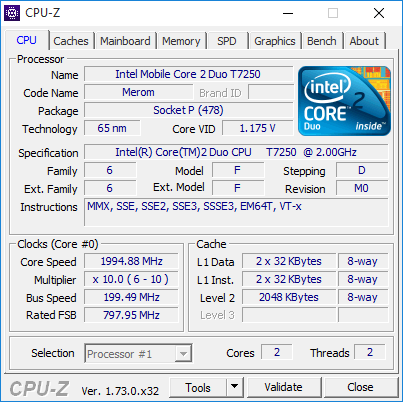
The Inspiron 1520 has 4GB ram, a 2Ghz Core2 Duo, a SanDisk Ultra II SSD and it had 32 bit Windows 7 which was an upgrade from the original Vista 32. I cloned the SSD to another hard drive before getting started. I used a Windows 10 32 bit ISO burned to a DVD. For tries 1 and 2, I used WiFi to access the internet.
1st try - everything seemed to go well, I let it download updates to the install. But then it got to the first reboot. It hung on the light blue window logo with the spinning dots. After half an hour I manually rebooted it and it gave this message "0xC1900101 - 0x20017 The installation failed in the SAFE_OS phase with an error during BOOT operation". Windows 7 was back, so I tried again.
2nd try - similar to the first (I allowed updates). The reboot phase was different this time - no logo with spinning dots. There was a cursor. Window 7 did come back to life.
So I did some fruitless research and found that the error message might be related to a driver. So I did things differently on the third and final try.
3rd try - this time I flipped the switch that turned off WiFi, plugged in an Ethernet cable (for Windows activation) and Bluetooth and I told the installer not update before installing. It worked. After the first reboot I got the large circle showing upgrade progress. Then finally I got to "Hi there, welcome back!" and finished the upgrade. But I wasn't done - read on.
Windows 10 was showing the desktop in 1024x768 mode instead of the native 1440x900. Display settings would not allow me to go that high, so I unplugged the Ethernet cable and switched on WiFi. Then I downloaded the updates. After rebooting the NVidia driver was active and gave me the option to go to 1440x900.
Next, I started going through apps to check compatibility. NetScanTools Pro, the Managed Switch Port Mapping Tool and related products worked normally as did iTunes and Office 2007. But SanDisk SSD Dashboard 1.4.1 hung on startup and consumed 98% of CPU time no matter what I did. Obviously SanDisk has some work to do.
Later I went into the Startup tab of Task Manager to disable old unused drivers - that speeded up boot time and stopped a crash message on power down.
It wasn't easy, but I now have Windows 10 Pro 32 bit running. I would really like to get x64 running on it instead. Another time.
Here are screenshots of the System window and below it is the CPU-Z.
Subscribe to:
Posts (Atom)