Release 11.91 was posted on May 6 (installed) and May 7 (USB patch). It has fixes for Packet Flooder and Ping Scanner plus some improvements to Packet Player and PingTrend.
Packet Flooder. Ok, so over the last few months I had reports of the gauge and graph not working and also the new automatic flood mode not working. All reports were from outside the US. Clue #1 - non English Windows OS. By working with one of these customers I figured out why: performance counters are localized to the user's language. Oops. I was accessing three of them to populate the gauge and graph. I was using the English language names of the counters which did not exist in non-English OS's. So I changed it to access the counters by numerical index, then convert that index to the localized name and access the counter I needed by interface name. These are the same counters used in Performance Monitor and Task Manager (pdh.lib for you programmers).
Other fixes were minor but important and a new feature called 'Run Action' was added. This allows the normal run until stop is pressed and also allows a new timed mode where you specify how many seconds you want it to run.
Ping Scanner. The problem here was two-fold. If you scanned a range of IPs outside your subnet and had Do Local ARP Scan checked, it took a long time. And it could be a very long time. The software appeared to hang even though it was not hanging up. The 'SendArp' API function tries to send the ARP packet even though the target is not local - I consider that a flaw. That was fixed by making sure the target is local. The other problem was the Do SMB/NBNS - it would be very slow if your own IP address was in the IP range. Again, easily fixed by skipping your own IP.
Packet Player (found by going to Packet Generator and clicking the button in the lower right) has a new feature that repeats sending the packet stream indefinitely until Stop is pressed. However, note that the Stop button can only be polled after the current packet capture stream is sent. It also automatically loads the last selected packet capture stream into the display grid on startup.
PingTrend has a new checkbox for setting the DF (don't fragment) flag in the IP header. If you do that, be careful because if your data section size exceeds the MTU less the headers, nothing will be sent. I also increased the accuracy of the reported time between packets.
How to get 11.91. If you have an active maintenance plan you can download the 11.91 full installer or USB patch by clicking on Help menu/Check for New Version and following the instructions.
The maintenance plan is currently discounted. Click on Help menu/Maintenance Plan Renewal to see the new pricing.
Friday, May 8, 2020


Monday, December 31, 2018
Happy New Year!
Happy New Year!
Current software versions
NetScanTools Pro 11.86.1
Managed Switch Port Mapping Tool 2.82
NetScanTools LE 1.63
NetScanTools Basic 2.52
Current software versions
NetScanTools Pro 11.86.1
Managed Switch Port Mapping Tool 2.82
NetScanTools LE 1.63
NetScanTools Basic 2.52
Friday, February 9, 2018
NetScanTools Pro 11.84 Released Jan 25, 2018
The big news about release 11.84 is SMB Scanning. Back in May 2017 during Wannacry we had several people check out the Network Shares - SMB tool and ask if it scanned specific devices by IP address. It does not really do that since it uses only NetBIOS, so I set about to make a tool that does these things:
Here is an animated GIF showing the new SMB Scanner in action:

- connect to NetBIOS Name Service and grab the 'Windows computer name' and MAC address.
- connect to SMB port and test the SMB service for supported versions. Every supported version is shown.
- show latency.
- do this for a list of IPv4 addresses or hostnames. IPv6 will be added in a later version.
Here is an animated GIF showing the new SMB Scanner in action:

You can use the SMB Scanner Tool to see supported SMB versions and check for vulnerabilities based on those supported versions. It identifies SMB 1.0 support in red because we already know it is compromised. More about the SMB Scanner.
IPv6 improvements
Another important addition is the new multicast Ping button that helps you discover IPv6 neighbors in the Network Neighbors tool. What this button does is ping the link local multicast address and this forces neighbor discovery to happen. The results are then updated after 10 seconds showing all responding link local IPv6 neighbors.
How to get NetScanTools Pro 11.84
If you already have an active maintenance plan for NetScanTools Pro, click on Help/Check for New Version to login and download the full installer.
Friday, November 10, 2017
Managed Switch Port Mapping Tool v2.78 Released November 8, 2017
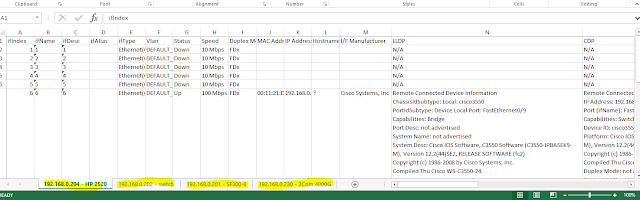
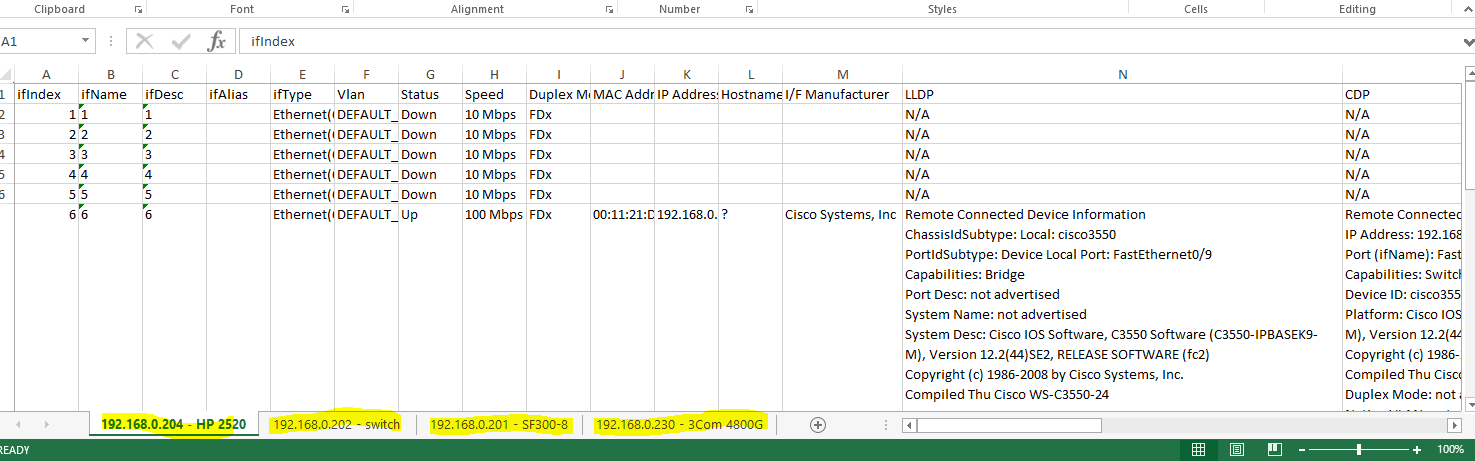
This release has one new function that has been requested by our users many times: the ability to export the results of a Switch List mapping to XML for easy opening in Microsoft Excel. Here is what it looks like when opened with Excel.
After mapping a Switch List, go to Review History, then select the Switch List and press Export Selected Switch List to XML.
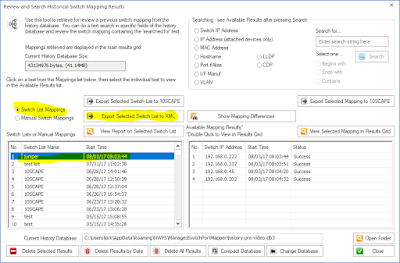
While we are looking at Review History, another thing added in this release was searching of LLDP and CDP fields. See it below.

Those are two of the more important changes in v2.78. Here are all the changes. Download v2.78 from http://www.switchportmapper.com/download.htm
After mapping a Switch List, go to Review History, then select the Switch List and press Export Selected Switch List to XML.
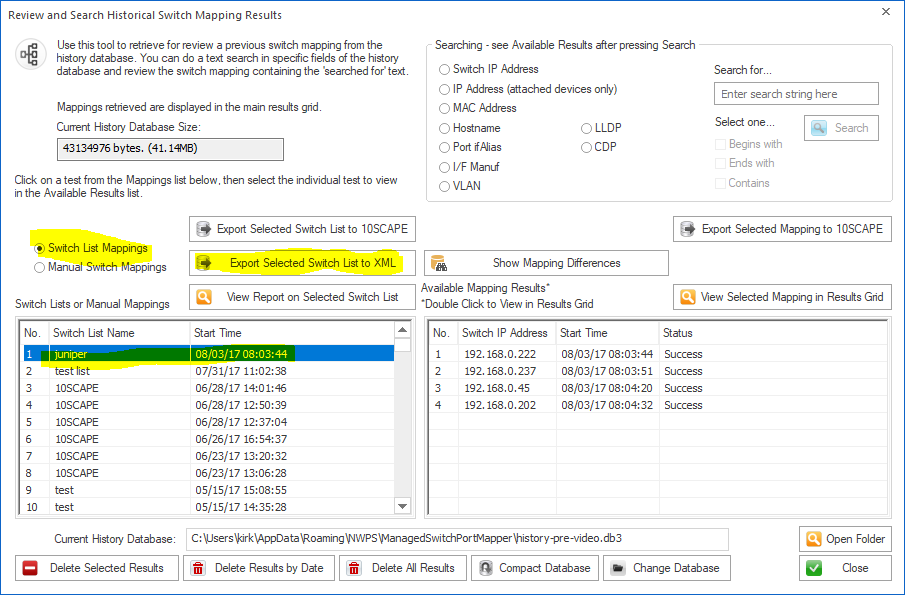
While we are looking at Review History, another thing added in this release was searching of LLDP and CDP fields. See it below.

Those are two of the more important changes in v2.78. Here are all the changes. Download v2.78 from http://www.switchportmapper.com/download.htm
-New XML export option for Switch Lists from Review History.
When the XML export is opened in Microsoft Excel, each switch results appear as
a separate sheet. Each row in a multi-row port (ports with more than one mac
address) are shown as separate rows in the XML output. Export progress is now
shown on the bottom status bar.
-Review History/Searching now has selections for searching
LLDP and CDP for text strings. Searching now defaults to 'Contains' if no
options are selected and the search results shown in the right hand list are a
bit wider. Search results are now shown in descending order - newest at the top.
'RecNo' in the two lists have been changed to 'No.".
-Corrected reporting of Switch Operational State for Extreme
Networks switches.
-Corrected and removed '00 00' showing in Interface Alias
column for Force10 switches.
-Warning is now shown if 10SCAPE export does find LLDP data
for the switches. Switches with no reported LLDP data are shown. Export progress
is now shown on the bottom status bar.
-Added new right click menu option to clear both the results
grid and the Switch Info left control panel window.
-Improved parsing of MAC and IP addresses from LLDP data.
-Added Interface Manufacturer derived from remote MAC address
in LLDP.
-Moved four tables from spmap database to working
database.
-Updated SQLite to version 3.21.0
-Updated MAC address/Manufacturer database.
Wednesday, September 20, 2017
NetScanTools Pro 11.83 Released September 15, 2017
This release improves the user experience in several areas and the UI is less cluttered.
Back when we started adding tools that depended on WinPcap, a computer typically had one interface that WinPcap could use for receiving or sending packets. That has all changed. VPNs, Virtual Machines and secondary network interfaces can all potentially add WinPcap compatible interfaces and those interfaces all show up in the WinPcap Interface dropdown list. The problem is that prior to v11.83 you had to select the right WinPcap compatible interface or the tool did not work right and you saw a message to select the correct interface. What v11.83 brings is automatic selection of the interface based on the input you give. This applies to a number of tools in NetScanTools Pro like ARP Scanner, Ping, Traceroute and others. You will still have to select the correct interface in many of the separately launched tools like Packet Capture or Passive Discovery because those tools are listening tools rather than 'packet sending/listening' tools.
Over the past few years typical monitor sizes (pixels HxW) has radically increased. We originally designed NetScanTools Pro to accommodate monitors as low as 800x600 but I personally use a pair of 1920x1080 monitors. I reviewed our web traffic on Google Analytics and found that nobody is using 800x600 or even 1024x768 so this new version of NetScanTools Pro expands the layout of the buttons and other controls on the right side and spreads them out as a first step towards reducing clutter.
Another annoyance was the 169.254.x.x popup message that appeared on startup, usually if you had Npcap installed instead of WinPcap. The message is gone and 169.254.x.x interfaces are not included in any tool (except those that show interfaces) since they are auto-assigned IP addresses from the operating system and actually not functional.
Many other changes and they are listed below. If you have an active maintenance plan you can download 11.83 through the Help menu/Check for New Version.
The list of changes.
Back when we started adding tools that depended on WinPcap, a computer typically had one interface that WinPcap could use for receiving or sending packets. That has all changed. VPNs, Virtual Machines and secondary network interfaces can all potentially add WinPcap compatible interfaces and those interfaces all show up in the WinPcap Interface dropdown list. The problem is that prior to v11.83 you had to select the right WinPcap compatible interface or the tool did not work right and you saw a message to select the correct interface. What v11.83 brings is automatic selection of the interface based on the input you give. This applies to a number of tools in NetScanTools Pro like ARP Scanner, Ping, Traceroute and others. You will still have to select the correct interface in many of the separately launched tools like Packet Capture or Passive Discovery because those tools are listening tools rather than 'packet sending/listening' tools.
Over the past few years typical monitor sizes (pixels HxW) has radically increased. We originally designed NetScanTools Pro to accommodate monitors as low as 800x600 but I personally use a pair of 1920x1080 monitors. I reviewed our web traffic on Google Analytics and found that nobody is using 800x600 or even 1024x768 so this new version of NetScanTools Pro expands the layout of the buttons and other controls on the right side and spreads them out as a first step towards reducing clutter.
Another annoyance was the 169.254.x.x popup message that appeared on startup, usually if you had Npcap installed instead of WinPcap. The message is gone and 169.254.x.x interfaces are not included in any tool (except those that show interfaces) since they are auto-assigned IP addresses from the operating system and actually not functional.
Many other changes and they are listed below. If you have an active maintenance plan you can download 11.83 through the Help menu/Check for New Version.
The list of changes.
-Usability improvement: Tools that depend on selecting the
right WinPcap compatible interface now automatically select the interface based
on the target entered. This includes ARP Ping, ARP Scanner, DHCP Server
Discovery, Duplicate IP Detection, OS Fingerprinting, Ping - Enhanced, Port
Scanner, Promiscuous Mode Scanner, and Traceroute. 'Launched' monitoring tools
still require you to select the interface to monitor.
-Reports now have expanded information regarding the settings
used for these tools (most are in the 'Notes' section of the report): Packet
Flooder, Ping - Enhanced, Ping Scanner, Port Scanner, and Traceroute.
-DHCP Server Discovery now times out quicker if the local port
68 is in use and any network adapters with the IP starting with 169.254.x.x are
not shown in the list because they are inactive.
-Maintenance Plan Expiration and other startup messages that
appear before the main window is active are now force to appear as the topmost
window. This stops the problem of starting NetScanTools Pro and not seeing
anything because a startup message window was behind another window.
-Ping Scanner now includes a right click menu option to use
your web browser to connect with the selected IP address.
-Fixed minor memory leak in Network Interfaces and
Statistics.
-Removed startup message about 169.254.x.x interfaces which
shows up more frequently if Npcap is installed instead of WinPcap.
-Began the first steps of a UI improvement by expanding the
area used by the tools in the right hand panel. Our research shows that most
displays are now wide enough for us to de-clutter the right hand side by making
it wider and moving controls.
-Ping: changed the default header acknowledgment field value
to 0.
-Traceroute: added header acknowledgment field as a user
defined field in Settings.
-SSL Certificate Scanner: Added parsing of Subject Alternative
Name (SAN) fields. Shown in the certificate chain. Previous retrievals of SSL
certificates are noted in the grid when you edit or start the software. Right
click to access the certificate chain. Added more parsing of signature
algorithms so OIDs will be less likely to show up.
-Graphical Traceroute: Added Reset Statistics button.
-SNMP and SNMP Advanced: default bulk reps is now 8. Suggest
lowering to 8 if you are using SNMPv2c or SNMPv3.
-USB Version Only: startup on a host running Npcap now works
correctly.
-Updated SQLite to version 3.20.1
-Updated MAC address/Manufacturer database.
-Updated IP to Country database.
-Updated dates in all subprograms to 2017.
Tuesday, September 5, 2017
Managed Switch Port Mapping Tools v2.77.1 released August 30, 2017
Version 2.77.1 followed closely behind the release of 2.77. This minor release adds serial and model retrieval from Adtran switches. It also fixes some minor issues with importing devices from a text file in Switch List editor. SQLite was updated as well.
Version 2.77 was a huge release.
Managed Switch Port Mapping Tool v2.77 adds several features to enhance the user experience plus new features including one that has been requested a number of times for several years.

Select at mapping from the left list, then select one from the right list. Press ‘Show Added & Removed’ to see a list of what is present only in the first mapping (green) and the second mapping (blue) as shown below.


Full list of changes in this revision.
2.77 August 18, 2017
-Added button in Review History for comparing and displaying the differences between two mappings of the same switch at different times. One selection shows the difference between information present on the first switch mapping vs the second switch mapping. The other selection shows movement of a device from one port to a new port. The results of the comparisons may be saved/exported/printed.
-New information added to SNMP Error Report.
USB version users need to use
the Help Menu/Check for Update selection to obtain the upgrade patch.
Version 2.77 was a huge release.
Managed Switch Port Mapping Tool v2.77 adds several features to enhance the user experience plus new features including one that has been requested a number of times for several years.
One of the most requested features (for years) is this: a way to compare two mappings of the same switch to see what has
changed. It is now there under Review History (left control panel):

Select at mapping from the left list, then select one from the right list. Press ‘Show Added & Removed’ to see a list of what is present only in the first mapping (green) and the second mapping (blue) as shown below.

To see a list of devices moved from one port to another between
mappings, press Show Moved. The final port that the device
was moved to is shown in the list.

Another major addition is the ‘Test’ button. You can find it in the device settings. It give you a way to see if
the device (switch or router or other) can be pinged and communicated with
using the SNMP settings you have entered. See below:

Do you have Juniper, Ubiquiti and Force10 switches? We improved support for those switches and we even found that some
models of Adtran switches can be mapped – but not all.
Full list of changes in this revision.
2.77 August 18, 2017
-Added button in Review History for comparing and displaying the differences between two mappings of the same switch at different times. One selection shows the difference between information present on the first switch mapping vs the second switch mapping. The other selection shows movement of a device from one port to a new port. The results of the comparisons may be saved/exported/printed.
-Added Test button to Device
Settings. Use it to verify the device is reachable with Ping and verify your
SNMP settings are correct. It also can tell you if it is a switch or a
different kind of SNMP enabled device.
-The target switch is now
tested near the start of the mapping to see if it really is a switch, if not a
'do you want to continue' question is asked.
-Additional sources of warning
messages during SNMP single parameter retrievals were identified and the
warning suppressed. The warnings were sometimes interpreted by users as errors
and slowed the mapping process.
-New Command Line option (-txt)
to save the results of a mapping to a hybrid tab/CSV delimited text file.
Columns are represented by tabs and rows within a multi-row cell are
represented by commas.
-Improved export to 10SCAPE. If
required columns are missing, a warning is now shown at export.
-Column Order and Visibility
Editor: the 10SCAPE defaults button now turns off the Ping Sweep warning (see
Global Settings to reactivate it).
-Global Settings: the Display
Ping Sweep Not Configured warning message is now disabled by default.
-Global Settings: when switch
group specific settings (like MAC limit per port) are changed, the changes are
now saved to the currently shown left panel switch group.
-Switch List Editor: show final
report and show individual reports are now unchecked by default.
-Framework: menu and toolbar
are now fixed in place and not dockable.
-Framework: top titlebar is now
correctly updated to show the switch info when the mapping is complete.
-Juniper, Force10 and Ubiquiti
switches are now processed correctly and manufacturer specific details are now
retrieved.
-Some models of Adtran switches
are now supported.
-Juniper switches now show the
vlan name, internal vlan number and vlan tag as follows with the tag in curly
braces: MYVLAN(5){100}. Other switch brands will continue to show MYLAN(5) or 5
where 5 is the vlan number.
-In order to speed up the
switch list mapping process, the column widths are no longer automatically
resized in list mode.
-VLAN identification for older
3COM switches was improved.
-Improvements to data shown in
vlan columns.
-Fixed SQL syntax problem in
lldpLocChassisId when subtypes 1-7 are present.
-Fixed usability problem with
device settings editor where selections from existing community names would not
appear to 'stick'.
-Fixed XML export where switch
information is added in the left column.
-Added System Description to
CDP data.
-New information added to SNMP Error Report.
-Changed Review History icon.
-Updated SQLite to version
3.20.0
-Updated MAC
address/Manufacturer database.
Download the ‘installed’ version 2.77 from SwitchPortMapper.com and
install it over the top of your current installed version.
Wednesday, January 25, 2017
NetScanTools.com website major revision under way
You may have noticed that NetScanTools.com is being revised. Slowly. One or more pages a day. It started in late December 2016.
It's being changed from an ancient Frontpage template with annoying flash into a modern Bootstrap based website. We are actually using the Unify template from wrapbootstrap. The nice part about Bootstrap is that it automatically sizes to meet the browser viewport. What this means is that there is only one set of webpages viewable equally well on mobile and the desktop.
Here are a few example pages:
http://www.netscantools.com/nstprodetails.html
http://www.netscantools.com/nstpro_packet_generator.html
http://www.netscantools.com/download.html
http://www.netscantools.com/support.html
http://www.netscantools.com/nstproonline.html
http://www.netscantools.com/nstbasicmain.html
I hope you like the new look!
Kirk
It's being changed from an ancient Frontpage template with annoying flash into a modern Bootstrap based website. We are actually using the Unify template from wrapbootstrap. The nice part about Bootstrap is that it automatically sizes to meet the browser viewport. What this means is that there is only one set of webpages viewable equally well on mobile and the desktop.
Here are a few example pages:
http://www.netscantools.com/nstprodetails.html
http://www.netscantools.com/nstpro_packet_generator.html
http://www.netscantools.com/download.html
http://www.netscantools.com/support.html
http://www.netscantools.com/nstproonline.html
http://www.netscantools.com/nstbasicmain.html
I hope you like the new look!
Kirk
Thursday, August 11, 2016
GetBestRoute bug in Windows 10 Anniversary Release 1607
After upgrading to Windows 10 Anniversary Release 1607 on August 6, 2016, I noticed something strange happening with ARP Scanning Tool and I traced it to an intermittent problem in the IpHlpApi function GetBestRoute.
When the computer is first booted, GetBestRoute works normally as it has in NetScanTools Pro for years and as it has on other Windows operating systems. I am using it to determine if an IPv4 address can be reached LOCALLY without going through the Default Gateway. Operating System specifics: 64 bit OS build 14393.51, only one ethernet wired 1GB network interface connected to an IPv4 network. Compiled as a 32 bit application using VC++ 2012.
Code snippet:
MIB_IPFORWARDROW IPForwardRow;
memset(&IPForwardRow, 0, sizeof(IPForwardRow));


When the computer is first booted, GetBestRoute works normally as it has in NetScanTools Pro for years and as it has on other Windows operating systems. I am using it to determine if an IPv4 address can be reached LOCALLY without going through the Default Gateway. Operating System specifics: 64 bit OS build 14393.51, only one ethernet wired 1GB network interface connected to an IPv4 network. Compiled as a 32 bit application using VC++ 2012.
Code snippet:
MIB_IPFORWARDROW IPForwardRow;
memset(&IPForwardRow, 0, sizeof(IPForwardRow));
DWORD dwResult = GetBestRoute(targetIPAddress, outgoingIf, &IPForwardRow);
// note the fail on getting non-local route
if(dwResult == NO_ERROR && IPForwardRow.dwForwardType != MIB_IPROUTE_TYPE_DIRECT)
{
// note the failure with a popup stating that the route is not local,
// ie. not on the same subnet or local network segment
}
Problem statement: if you pass in ANY targetIPAddress between 192.168.0.1 and 192.168.0.254 and outgoing interface is 192.168.0.205 on your computer, it should come back with MIB_IPROUTE_TYPE_DIRECT. This is the normal way it works. Here is a view of the contents of the IPForwardRow structure as it should appear with 192.168.0.1 and 192.168.0.205 as the interface (192.168.0.1 is the default gateway).

You can see the dwForwardDest is populate correctly as is dwForwardMask and the ForwardType is direct as expected.
But for any other IPv4 address 192.168.0.2 through 192.168.0.254, you get this with empty dwForwardDest and dwForwardMask with the route type INCORRECTLY shown as MIB_IPROUTE_TYPE_INDIRECT.

Obviously something was broken in this new Windows 10 release. It is intermittent but once it goes into this failure mode, it stays in the failure mode until the computer is rebooted. I do not know what the trigger is.
I have fixed it by writing my own GetBestRoute equivalent - but I should not have to do that. Microsoft PLEASE FIX this ASAP!
NetScanTools Pro v11.80 released Aug 4, 2016
NetScanTools Pro 11.80 was released on Aug 4, 2016. This version was completely compiled on Windows 10 and is dual code-signed with both SHA256 and SHA1.
We added a new IPv6 Route Tool that displays the routes and many other properties.

There are many changes and the most obvious change is in the way WinPcap compatible interfaces are shown and selected. Tools that use WinPcap now have a much more verbose description of the interface, not just the IPv4 address shown before. Previously, users would occasionally run into problems where the IPv4 address shown in the dropdown list was not able to be opened even though WinPcap says it was compatible with it. The way the interfaces are opened based on the selection was significantly changed internally so there should be less chance of problems.

The Real Time Blacklist Check tool was changed from a text based single threaded (one after the other) output to a grid based output with multithreading. In other words, in v11.80 many RBL servers are queried simultaneously for the presence of the mail server IPv4 address in their databases.

SNMP tools now support SNMPv3 without the enduser having to go obtain libeay32.dll. We have an Encryption Registration Number and the software is ECCN 5D992.c.
The SNMP Scanner and SNMP Dictionary Attack Tools were worked on extensively to fix problems that happened if you sorted a column with scanning (no longer allowed) and also problems with the XML Excel Schema. Side note - if you are using Excel, don't 'import' the XML file, simply 'open' it just like any other Excel file.
Here are the specific changes:
-Compiled on Windows 10.
-New Tool: IPv6 Routing Table.
-Significant change to the way WinPcap compatible interfaces are listed and chosen. Layout of some tools had to change to support longer selection box.Opening and using a WinPcap network interface no longer depends on matching the IPv4 address.
-We now test to verify that the official WinPcap service or the alternative npcap or Win10Pcap services are running.
-Realtime Black List Check tool completely rewritten with new user interface and it is now multithreaded for increased speed.
-SNMP Core and Advanced tools now have simplified SNMPv3 options. SNMP DLL now has libeay32.dll added and SNMP Library Manager was removed. ECCN 5D992.c
-SNMP Scanner, SNMP Dictionary Attack and Protected Storage Viewer have updated grid controls and are now prevented from sorting by clicking on the column header while the tool is working. Exporting with Microsoft Excel schema has been updated - simply 'open' the XML file from Excel (do not import it). SNMP v1+v2c setting is now properly saved.
-ARP based tools now confirm that the target IPv4 addresses are within the same subnet as the chosen WinPcap interface.
-ARP Scan now automatically sorts by the IP address column when complete.
-Whois changed so that if whois server does not respond, it times out and automatically stops.
-Assigned IPv6 Teredo server is shown in IPv6 Compatible Interfaces.
-Corrected privilege problems with writing to certain parts of the registry during registration process.
-Updated SQLite to version 3.13.0
-Updated MAC address/Manufacturer database.
-Updated IP to Country database.
-Code signing now uses both SHA256 and SHA1 for maximum operating system portability.
We added a new IPv6 Route Tool that displays the routes and many other properties.

There are many changes and the most obvious change is in the way WinPcap compatible interfaces are shown and selected. Tools that use WinPcap now have a much more verbose description of the interface, not just the IPv4 address shown before. Previously, users would occasionally run into problems where the IPv4 address shown in the dropdown list was not able to be opened even though WinPcap says it was compatible with it. The way the interfaces are opened based on the selection was significantly changed internally so there should be less chance of problems.

The Real Time Blacklist Check tool was changed from a text based single threaded (one after the other) output to a grid based output with multithreading. In other words, in v11.80 many RBL servers are queried simultaneously for the presence of the mail server IPv4 address in their databases.

SNMP tools now support SNMPv3 without the enduser having to go obtain libeay32.dll. We have an Encryption Registration Number and the software is ECCN 5D992.c.
The SNMP Scanner and SNMP Dictionary Attack Tools were worked on extensively to fix problems that happened if you sorted a column with scanning (no longer allowed) and also problems with the XML Excel Schema. Side note - if you are using Excel, don't 'import' the XML file, simply 'open' it just like any other Excel file.
Here are the specific changes:
-Compiled on Windows 10.
-New Tool: IPv6 Routing Table.
-Significant change to the way WinPcap compatible interfaces are listed and chosen. Layout of some tools had to change to support longer selection box.Opening and using a WinPcap network interface no longer depends on matching the IPv4 address.
-We now test to verify that the official WinPcap service or the alternative npcap or Win10Pcap services are running.
-Realtime Black List Check tool completely rewritten with new user interface and it is now multithreaded for increased speed.
-SNMP Core and Advanced tools now have simplified SNMPv3 options. SNMP DLL now has libeay32.dll added and SNMP Library Manager was removed. ECCN 5D992.c
-SNMP Scanner, SNMP Dictionary Attack and Protected Storage Viewer have updated grid controls and are now prevented from sorting by clicking on the column header while the tool is working. Exporting with Microsoft Excel schema has been updated - simply 'open' the XML file from Excel (do not import it). SNMP v1+v2c setting is now properly saved.
-ARP based tools now confirm that the target IPv4 addresses are within the same subnet as the chosen WinPcap interface.
-ARP Scan now automatically sorts by the IP address column when complete.
-Whois changed so that if whois server does not respond, it times out and automatically stops.
-Assigned IPv6 Teredo server is shown in IPv6 Compatible Interfaces.
-Corrected privilege problems with writing to certain parts of the registry during registration process.
-Updated SQLite to version 3.13.0
-Updated MAC address/Manufacturer database.
-Updated IP to Country database.
-Code signing now uses both SHA256 and SHA1 for maximum operating system portability.
Thursday, June 2, 2016
NetScanTools Pro 11.75 Released May 6, 2016
This is a minor release - kind of - it has numerous changes to the Packet Flooder to increase speed and give the user finer control over packet sending.
We also did something that was long overdue. We changed from the ancient Wise installer to the most recent Inno Setup installer for the 'installed' version.
SQLite was updated along with the databases and in order to be used on Windows 10, we codesigned everything with both an SHA256 certificate and an SHA1 certificate.
If your maintenance plan is active, please click on Help menu, then Check for New Version. The embedded window will appear with links for downloading. You will need your access credentials.
Full list of changes is here: http://www.netscantools.com/nstpronews.html
We also did something that was long overdue. We changed from the ancient Wise installer to the most recent Inno Setup installer for the 'installed' version.
SQLite was updated along with the databases and in order to be used on Windows 10, we codesigned everything with both an SHA256 certificate and an SHA1 certificate.
If your maintenance plan is active, please click on Help menu, then Check for New Version. The embedded window will appear with links for downloading. You will need your access credentials.
Full list of changes is here: http://www.netscantools.com/nstpronews.html
Wednesday, March 23, 2016
Managed Switch Port Mapping Tool v2.63 released on Friday, March 18, 2016
The v2.63 release has one major change dealing with IEEE 802.3ad LAG (Link Aggregation) ports. If your switch reports these ports in the type column as ieee8023adLag(161) AND you have assigned other ports to be members of the LAG, it will show something like ieee8023adLag(161): fa1, fa2 where fa1 and fa2 are the ifNames of the ports comprising the LAG. Click on the image below.

Another change in the message you see when the switch or other device does not respond to SNMP. We had a user accidentally change his SNMP port from 161 to 10. If SNMP times out and the port is not 161, you are told that the most likely cause is the port being wrong.
Like all versions released since Jan 1, 2016, we are code signing the executables and the installer with both SHA1 signed certificates and SHA256 signing. The ensures that the authorship of the software will be recognized across all current versions of Windows.
Download the installed trial of Managed Switch Port Mapping Tool v2.63 for Windows from http://www.SwitchPortMapper.com/

Another change in the message you see when the switch or other device does not respond to SNMP. We had a user accidentally change his SNMP port from 161 to 10. If SNMP times out and the port is not 161, you are told that the most likely cause is the port being wrong.
Like all versions released since Jan 1, 2016, we are code signing the executables and the installer with both SHA1 signed certificates and SHA256 signing. The ensures that the authorship of the software will be recognized across all current versions of Windows.
Download the installed trial of Managed Switch Port Mapping Tool v2.63 for Windows from http://www.SwitchPortMapper.com/
Thursday, November 5, 2015
New Switch Port Mapper Videos
We've added a bunch of new videos showing how to use various functions of the Managed Switch Port Mapping Tool.
Please visit:
http://www.switchportmapper.com/videos.htm
Please visit:
http://www.switchportmapper.com/videos.htm
Tuesday, September 8, 2015
Managed Switch Port Mapping Tool v2.55 released
On Friday, Sept 4 we released version 2.55 of the Managed Switch Port Mapping Tool. It improves the wording on new dialogs introduced in v2.54. It also adds a new Used Ports section to the webpage reports.
If you have the installed version, click on Help/Check for Update or visit http://www.switchportmapper.com/ to download v2.55. If you have the USB version, click Help/Check for Update to for a link to the upgrade patch.
If you have the installed version, click on Help/Check for Update or visit http://www.switchportmapper.com/ to download v2.55. If you have the USB version, click Help/Check for Update to for a link to the upgrade patch.
Thursday, August 27, 2015
August Newsletter
Our August Newsletter is ready. It talks about the recent releases and we mention the upcoming Managed Switch Port Mapping Tool 2.54 and NetScanTools Pro 11.72. Those will be done very soon.
Please visit:
http://www.netscantools.com/pressandnewsletters.html
Have a great end of summer!
Please visit:
http://www.netscantools.com/pressandnewsletters.html
Have a great end of summer!
Thursday, August 13, 2015
How I installed Windows 10 on an old Dell Inspiron 1520 laptop
Windows 10 Pro retail release on a 9 year old laptop? yes. It can be done. But it wasn't easy.
Where I started from:
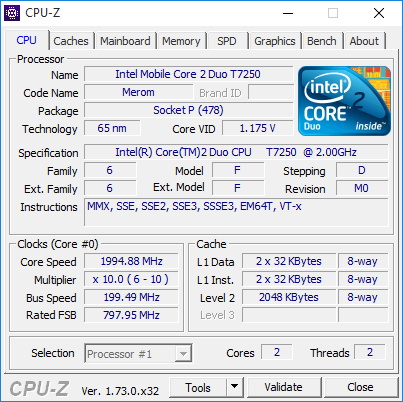
The Inspiron 1520 has 4GB ram, a 2Ghz Core2 Duo, a SanDisk Ultra II SSD and it had 32 bit Windows 7 which was an upgrade from the original Vista 32. I cloned the SSD to another hard drive before getting started. I used a Windows 10 32 bit ISO burned to a DVD. For tries 1 and 2, I used WiFi to access the internet.
1st try - everything seemed to go well, I let it download updates to the install. But then it got to the first reboot. It hung on the light blue window logo with the spinning dots. After half an hour I manually rebooted it and it gave this message "0xC1900101 - 0x20017 The installation failed in the SAFE_OS phase with an error during BOOT operation". Windows 7 was back, so I tried again.
2nd try - similar to the first (I allowed updates). The reboot phase was different this time - no logo with spinning dots. There was a cursor. Window 7 did come back to life.
So I did some fruitless research and found that the error message might be related to a driver. So I did things differently on the third and final try.
3rd try - this time I flipped the switch that turned off WiFi, plugged in an Ethernet cable (for Windows activation) and Bluetooth and I told the installer not update before installing. It worked. After the first reboot I got the large circle showing upgrade progress. Then finally I got to "Hi there, welcome back!" and finished the upgrade. But I wasn't done - read on.
Windows 10 was showing the desktop in 1024x768 mode instead of the native 1440x900. Display settings would not allow me to go that high, so I unplugged the Ethernet cable and switched on WiFi. Then I downloaded the updates. After rebooting the NVidia driver was active and gave me the option to go to 1440x900.
Next, I started going through apps to check compatibility. NetScanTools Pro, the Managed Switch Port Mapping Tool and related products worked normally as did iTunes and Office 2007. But SanDisk SSD Dashboard 1.4.1 hung on startup and consumed 98% of CPU time no matter what I did. Obviously SanDisk has some work to do.
Later I went into the Startup tab of Task Manager to disable old unused drivers - that speeded up boot time and stopped a crash message on power down.
It wasn't easy, but I now have Windows 10 Pro 32 bit running. I would really like to get x64 running on it instead. Another time.
Here are screenshots of the System window and below it is the CPU-Z.


Where I started from:
The Inspiron 1520 has 4GB ram, a 2Ghz Core2 Duo, a SanDisk Ultra II SSD and it had 32 bit Windows 7 which was an upgrade from the original Vista 32. I cloned the SSD to another hard drive before getting started. I used a Windows 10 32 bit ISO burned to a DVD. For tries 1 and 2, I used WiFi to access the internet.
1st try - everything seemed to go well, I let it download updates to the install. But then it got to the first reboot. It hung on the light blue window logo with the spinning dots. After half an hour I manually rebooted it and it gave this message "0xC1900101 - 0x20017 The installation failed in the SAFE_OS phase with an error during BOOT operation". Windows 7 was back, so I tried again.
2nd try - similar to the first (I allowed updates). The reboot phase was different this time - no logo with spinning dots. There was a cursor. Window 7 did come back to life.
So I did some fruitless research and found that the error message might be related to a driver. So I did things differently on the third and final try.
3rd try - this time I flipped the switch that turned off WiFi, plugged in an Ethernet cable (for Windows activation) and Bluetooth and I told the installer not update before installing. It worked. After the first reboot I got the large circle showing upgrade progress. Then finally I got to "Hi there, welcome back!" and finished the upgrade. But I wasn't done - read on.
Windows 10 was showing the desktop in 1024x768 mode instead of the native 1440x900. Display settings would not allow me to go that high, so I unplugged the Ethernet cable and switched on WiFi. Then I downloaded the updates. After rebooting the NVidia driver was active and gave me the option to go to 1440x900.
Next, I started going through apps to check compatibility. NetScanTools Pro, the Managed Switch Port Mapping Tool and related products worked normally as did iTunes and Office 2007. But SanDisk SSD Dashboard 1.4.1 hung on startup and consumed 98% of CPU time no matter what I did. Obviously SanDisk has some work to do.
Later I went into the Startup tab of Task Manager to disable old unused drivers - that speeded up boot time and stopped a crash message on power down.
It wasn't easy, but I now have Windows 10 Pro 32 bit running. I would really like to get x64 running on it instead. Another time.
Here are screenshots of the System window and below it is the CPU-Z.


Friday, July 31, 2015
July Newsletter Ready
This newsletter covers the recent NetScanTools Basic 2.4 and Managed Switch Port Mapping Tool 2.53 releases along with Windows 10 compatibility. Have a good summer!
Wednesday, June 24, 2015
How to use Remote Desktop to access Windows Server 2012 from Windows 7 with TLS 1.0 Disabled
After securing a Windows Server 2012 box with TLS 1.0 disabled per PCI-DSS 3.1 requirements, I found that I could only connect to it through Remote Desktop (RDP) from a Windows 8.1 or Windows 10 client.
The problem was this: all attempts to connect through the LAN via Remote Desktop from Windows 7 were met with "This computer can't connect to the remote computer. Try connecting again...etc."
The Server 2012 Standard (not R2) computer is running the most simple Remote Desktop mode accessed through Computer/Remote Settings as shown below.

I went through rabbit trails with firewall settings, Remote Desktop Services (which I did not install) turning on and off the 'Allow connections only from computers running Remote Desktop with Network Level Authentication', using Select Users - none of them worked.
During extensive searching I ran across a some discussions of TLS and RDP on Windows 7. I found that we had RDP 7.1 on the Windows 7 sp1 computer and RDP 8.0 was an optional download through Windows update. RDP 8 apparently has support for later TLS versions beyond the disabled TLS 1.0. RDP 8 for Windows 7 is discussed here: https://support.microsoft.com/en-us/kb/2592687.
Solution: After installing the KB2592687 update (an optional update in Windows update), rebooting and installing even more updates triggered by that update, RDP 8.0 client was installed and connected normally to the Windows 2012 server.
There is also an RDP 8.1 client only update KB2830477 that I may install later but for now I can Remote Desktop in to the Server 2012 box from Windows 7 without any apparent problems.
More info on RDP 8.1 for Windows 7 including prerequisites: http://blogs.msdn.com/b/rds/archive/2013/11/12/remote-desktop-protocol-8-1-update-for-windows-7-sp1-released-to-web.aspx
The problem was this: all attempts to connect through the LAN via Remote Desktop from Windows 7 were met with "This computer can't connect to the remote computer. Try connecting again...etc."
The Server 2012 Standard (not R2) computer is running the most simple Remote Desktop mode accessed through Computer/Remote Settings as shown below.

I went through rabbit trails with firewall settings, Remote Desktop Services (which I did not install) turning on and off the 'Allow connections only from computers running Remote Desktop with Network Level Authentication', using Select Users - none of them worked.
During extensive searching I ran across a some discussions of TLS and RDP on Windows 7. I found that we had RDP 7.1 on the Windows 7 sp1 computer and RDP 8.0 was an optional download through Windows update. RDP 8 apparently has support for later TLS versions beyond the disabled TLS 1.0. RDP 8 for Windows 7 is discussed here: https://support.microsoft.com/en-us/kb/2592687.
Solution: After installing the KB2592687 update (an optional update in Windows update), rebooting and installing even more updates triggered by that update, RDP 8.0 client was installed and connected normally to the Windows 2012 server.
There is also an RDP 8.1 client only update KB2830477 that I may install later but for now I can Remote Desktop in to the Server 2012 box from Windows 7 without any apparent problems.
More info on RDP 8.1 for Windows 7 including prerequisites: http://blogs.msdn.com/b/rds/archive/2013/11/12/remote-desktop-protocol-8-1-update-for-windows-7-sp1-released-to-web.aspx
Monday, June 15, 2015
NetScanTools Pro v11.70 released on Friday, June 12, 2015
Version 11.70 was long overdue but we made many changes and added a new tool called the DNS Traffic Monitor. This new tool shows you the percentage of query allocations or loading experienced by each default DNS assigned to your system. It also shows you any outgoing DNS queries to DNS that are not in your default list.

This release completes the transition of moving all the code to VC2012. The next move will be to VC2015 when it is finally released. All development has now been transitioned to Windows 8.1. It may be one of the last releases to support Windows XP.
Additionally, each separately launched tool has been changed to conform to a new look and feel. The DNS Traffic Monitor is one example of the look - here are a couple others:
The demo version will be updated to 11.70 soon. If you have an active maintenance plan you can get 11.70 by clicking on Help/Check for New Version.

This release completes the transition of moving all the code to VC2012. The next move will be to VC2015 when it is finally released. All development has now been transitioned to Windows 8.1. It may be one of the last releases to support Windows XP.
Additionally, each separately launched tool has been changed to conform to a new look and feel. The DNS Traffic Monitor is one example of the look - here are a couple others:
 |
| Passive Discovery |
 |
| SNMP Scanner |
Wednesday, June 10, 2015
Win10Pcap - a WinPcap fork
Today Gerald Combs graciously forwarded me an announcement about a new fork to WinPcap called Win10Pcap based on NDIS 6. I immediately tested it with Wireshark and NetScanTools Pro.
Since this fork uses a different kernel mode driver name - ie, NOT npf.sys, Wireshark shows the popup message "The NPF driver isn't running. You may have trouble capturing or listing interfaces.". However, even though this message shows Wireshark will run because Wireshark loads packet.dll and wpcap.dll - these two DLL interfaces are unchanged (the WinPcap SDK interface is supposedly unchanged) so no matter what the driver is called, it starts. So, yes, Wireshark 1.12.5 appears to run with this fork of WinPcap.
That brings me to NetScanTools Pro. Not only does NetScanTools Pro capture packets (like Wireshark), it also sends packets. I tested the ARP, Ping and Traceroute tools that depend on WinPcap for sending packets. They appeared to work OK.
I was just about to release NetScanTools Pro 11.70, so I was able to make my test for active running npf.sys also test for the new service name - so that means NetScanTools Pro will be able to detect either the official WinPcap 4.1.3 and successors or this new fork.
Note that old WinPcap 4.1.3 DOES WORK FINE on later releases of Windows 10 builds based on NDIS 5. So it's your choice as to whether you need to use this new fork.
You may download this new WinPcap fork from http://www.Win10Pcap.org/ however, since they use GPLv2 instead of BSD license as WinPcap has historically done, we will not be including the installer with NetScanTools Pro.
Congrats to the author of Win10Pcap! (but what happens to the name when Win 11 is released?)
Since this fork uses a different kernel mode driver name - ie, NOT npf.sys, Wireshark shows the popup message "The NPF driver isn't running. You may have trouble capturing or listing interfaces.". However, even though this message shows Wireshark will run because Wireshark loads packet.dll and wpcap.dll - these two DLL interfaces are unchanged (the WinPcap SDK interface is supposedly unchanged) so no matter what the driver is called, it starts. So, yes, Wireshark 1.12.5 appears to run with this fork of WinPcap.
That brings me to NetScanTools Pro. Not only does NetScanTools Pro capture packets (like Wireshark), it also sends packets. I tested the ARP, Ping and Traceroute tools that depend on WinPcap for sending packets. They appeared to work OK.
I was just about to release NetScanTools Pro 11.70, so I was able to make my test for active running npf.sys also test for the new service name - so that means NetScanTools Pro will be able to detect either the official WinPcap 4.1.3 and successors or this new fork.
Note that old WinPcap 4.1.3 DOES WORK FINE on later releases of Windows 10 builds based on NDIS 5. So it's your choice as to whether you need to use this new fork.
You may download this new WinPcap fork from http://www.Win10Pcap.org/ however, since they use GPLv2 instead of BSD license as WinPcap has historically done, we will not be including the installer with NetScanTools Pro.
Congrats to the author of Win10Pcap! (but what happens to the name when Win 11 is released?)
Wednesday, May 13, 2015
Managed Switch Port Mapping Tool v2.52 Released on May 11, 2015
We've had some occasional problems with strange (non-printable) characters appearing in the CDP and LLDP fields - it was thought to have been fixed in a previous release but apparently not, so we addressed that in this release. Those non-printable characters occasionally included apostrophes or double quotes which completely messed up (technical term) the SQL commands, so an SQLite database error popped up. In LLDP you will now always see hex characters in the MAC Address and Network Address fields and in CDP 'Port (ifName) and Device ID will either show a printable string or hex characters - both are valid.
We also changed LLDP and CDP retrieval phases to be more responsive to user input.
Speaking of strange, non-printable characters, the new SNMP Walk Tool used for support would also occasionally show strange characters. That has been fixed too.
More minor report changes and we updated also SQLite to the latest version along with the MAC address/manufacturer database.
Please visit www.SwitchPortMapper.com to download this new release.
By the way, this version works on Windows 10 Preview 10074.
Kirk
We also changed LLDP and CDP retrieval phases to be more responsive to user input.
Speaking of strange, non-printable characters, the new SNMP Walk Tool used for support would also occasionally show strange characters. That has been fixed too.
More minor report changes and we updated also SQLite to the latest version along with the MAC address/manufacturer database.
Please visit www.SwitchPortMapper.com to download this new release.
By the way, this version works on Windows 10 Preview 10074.
Kirk
Subscribe to:
Posts (Atom)